OpenTrack Extension Setup | Beam Eye Tracker Skip to content

Opentrack Extension Setup

If you're running an older version or prefer using Opentrack separately, follow the instructions below.
Using Beam v2.5.5 or newer? You probably don't need Opentrack anymore.
Opentrack components are now built into Beam. No extra software is required to run in parallel. Only follow this guide if you prefer running Opentrack separately.
GET STARTED →
Beam Eye Tracker v2.5.5 and newer: Opentrack Setup Guide

1

Install the Beam Eye Tracker

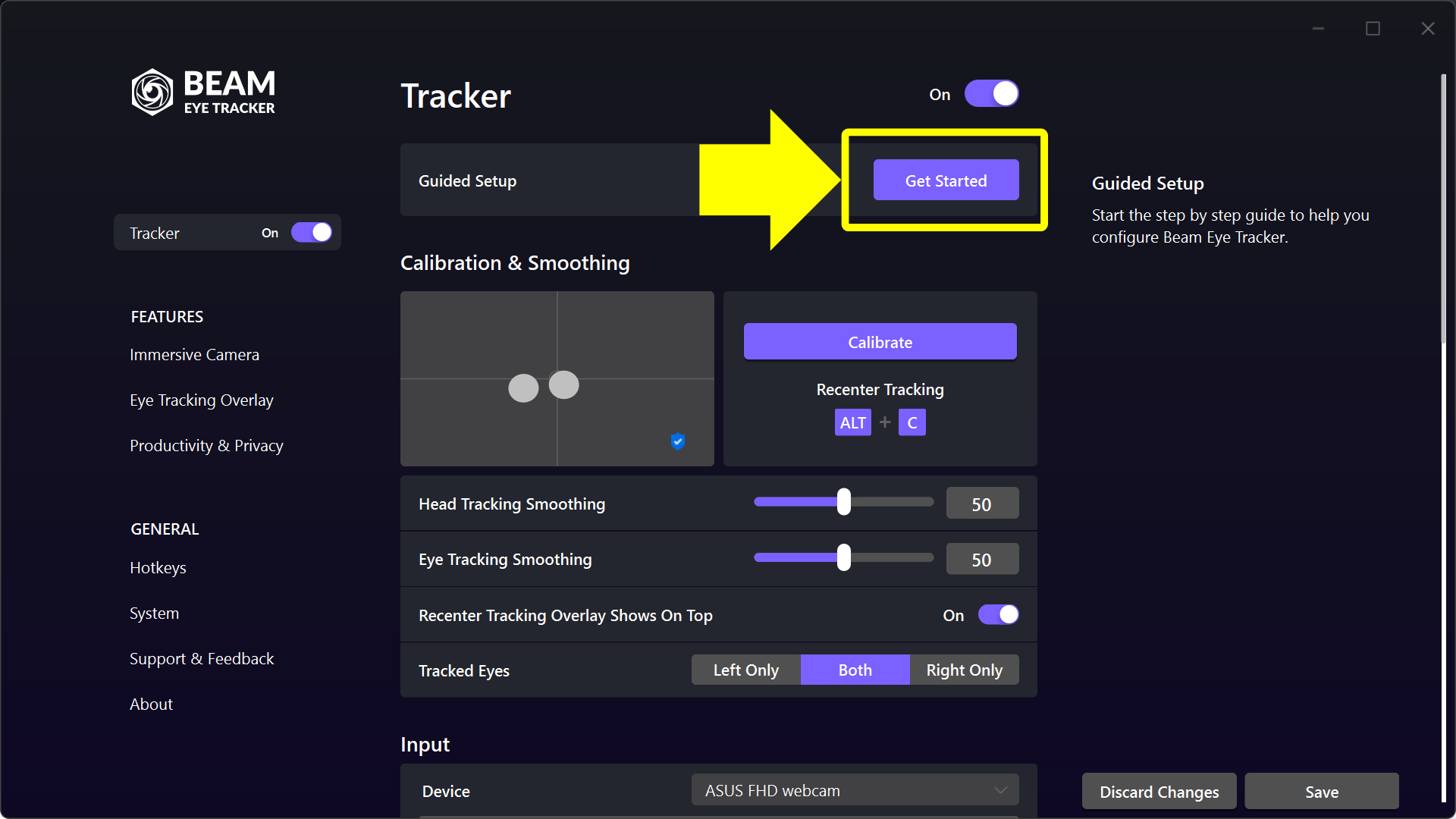
Get the Beam Eye Tracker here, install it, and complete the onboarding under Tracker > Guided Setup > Get Started.

Note: For Beam v2.5.5 and newer this is all you need to do for most games (aside from a few exceptions that require a quick in-game setting change).

If you prefer running Opentrack separately, continue with Step 2.

2

Select the Default Profile for Opentrack in Beam

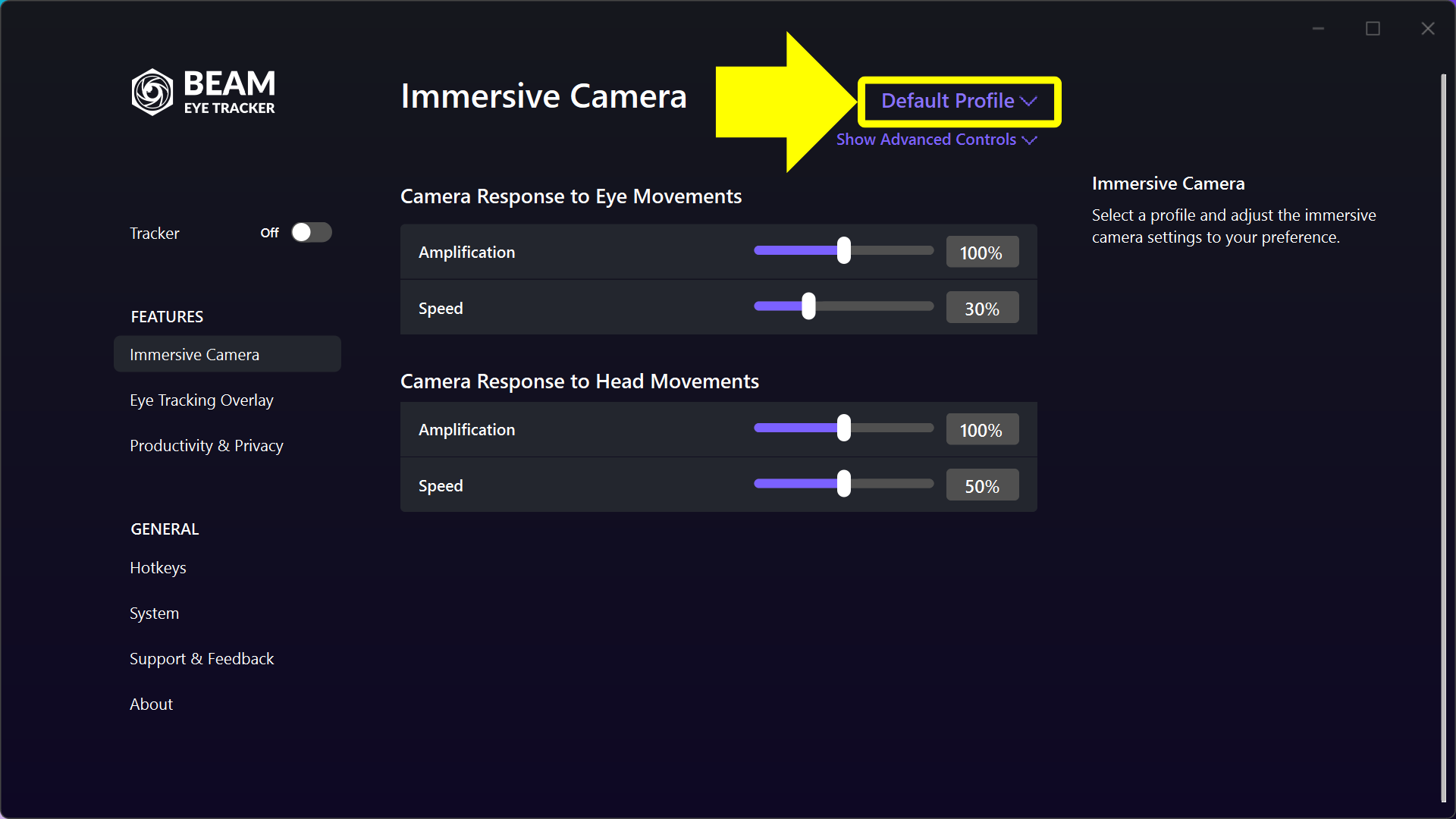
Open the Beam Eye Tracker app and go to the Immersive Camera feature.

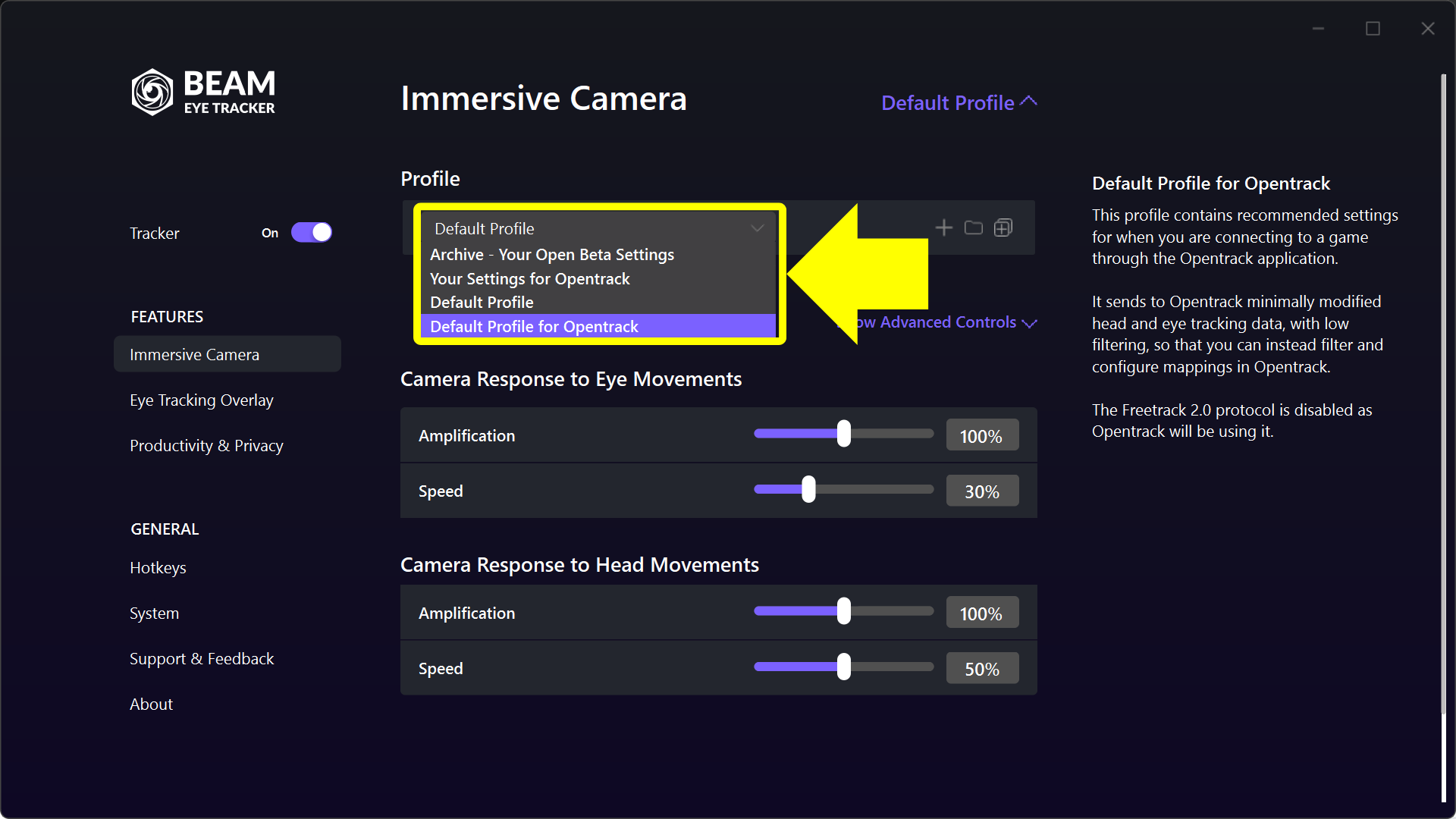
Click the purple Profile name in the middle column on the top right (it will say Default Profile for a fresh installation) with the chevron arrow next to it. Then select Default Profile for Opentrack from the profiles dropdown menu.

If you’ve used Beam with v2.4.5 or older, your previous Beam settings have been automatically converted into a profile called Your Settings for Opentrack when you updated to v2.5.5 or newer. You can continue using the same Opentrack profile by selecting that profile in Beam.

3

Download and install the free OpenTrack PC software

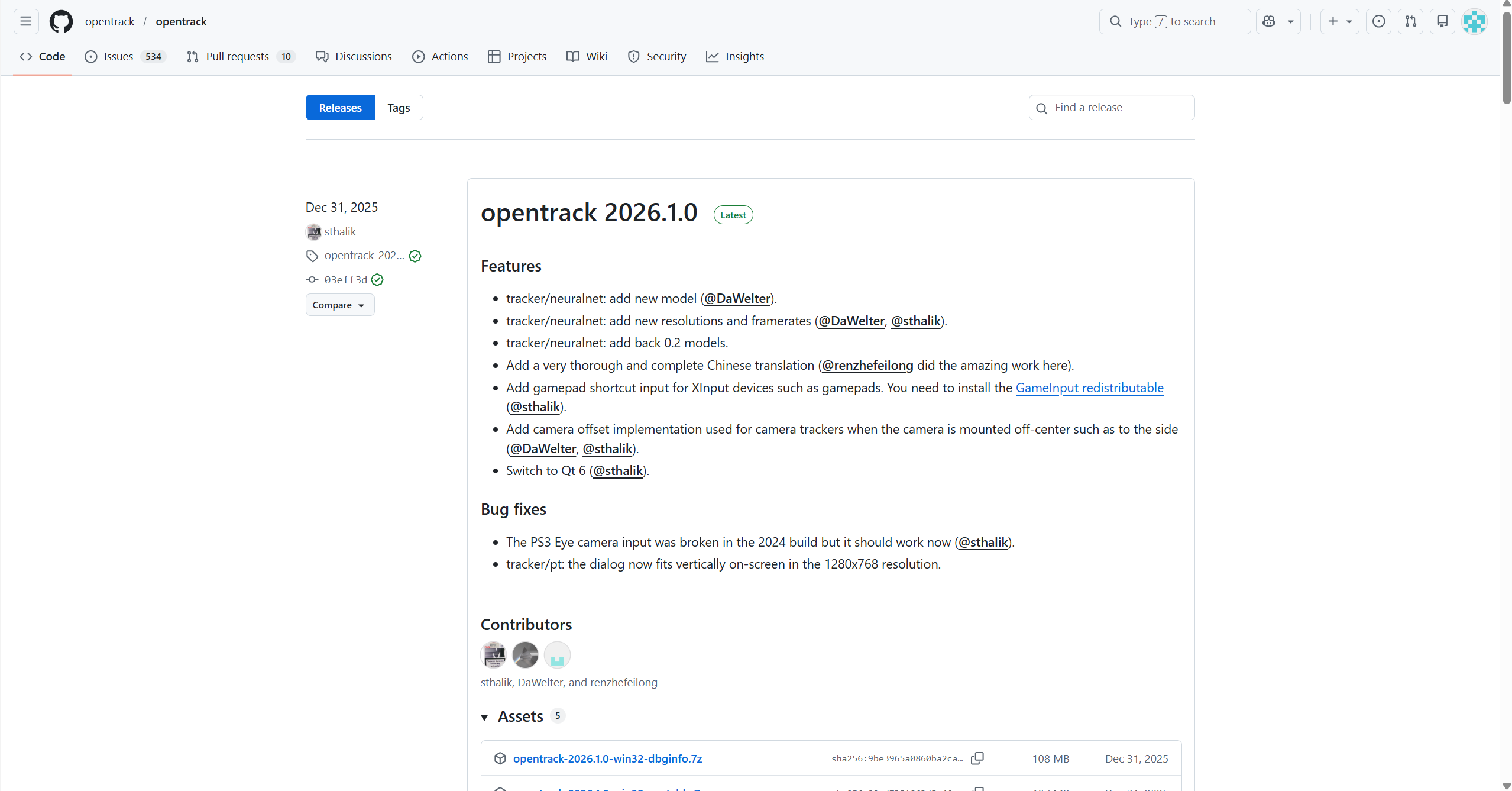
Download the free OpenTrack PC software.
OpenTrack is an open-source app that is supported by an active community and is considered safe and reliable.

4

Change the input in OpenTrack to the Beam Eye Tracker

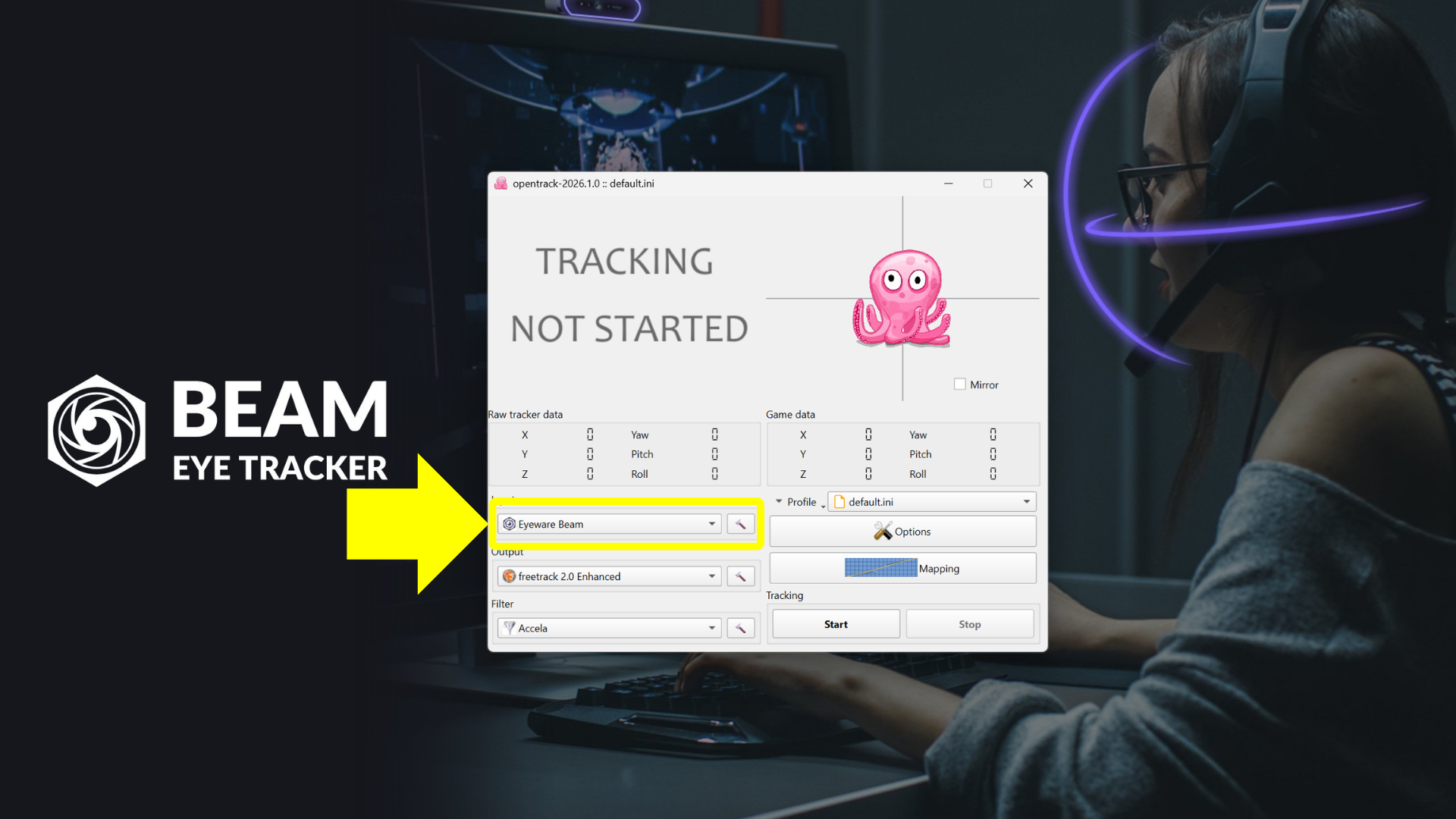
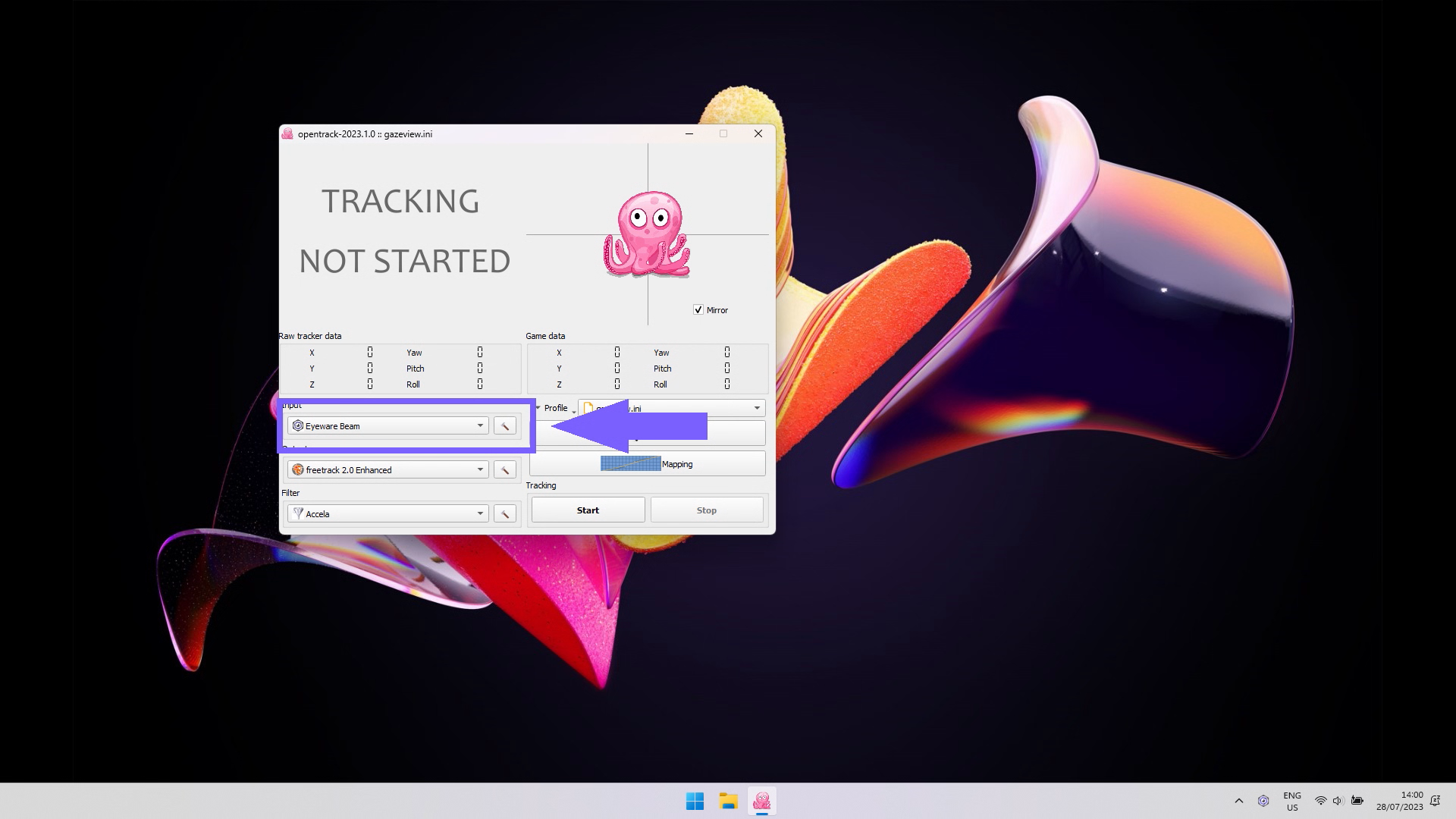
Click on Input and select “Eyeware Beam”. Then, click on Start to start tracking with OpenTrack. You should see the pink octopus reacting to your head and eye movements. Make sure the Tracker is toggled On in Beam.

5

Setup the recentering hotkey

We recommend setting up the recentering hotkey in both apps, the Beam Eye Tracker and Opentrack.

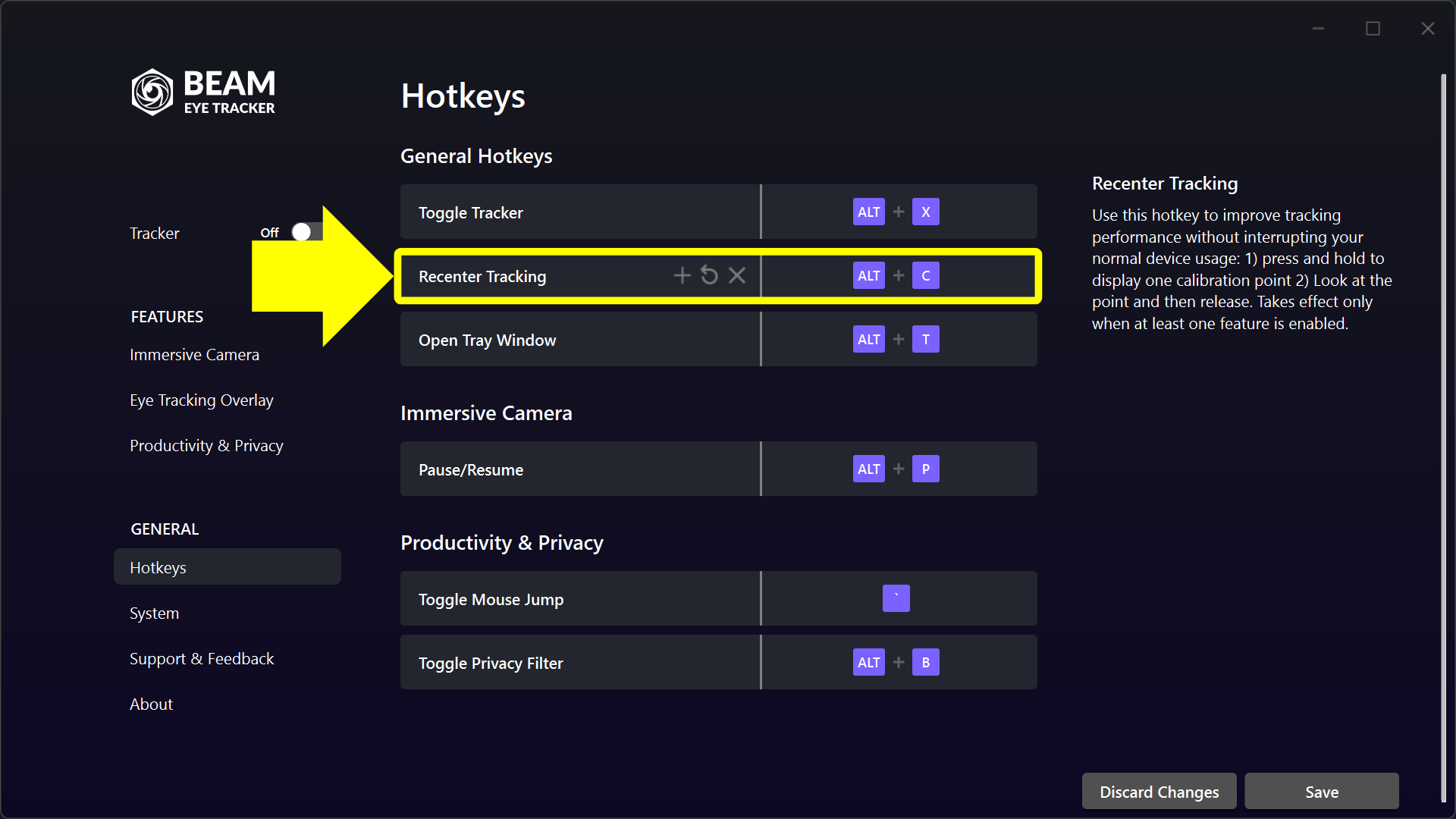
  1. Open Beam Eye Tracker > Hotkeys > Recenter Tracking, and assign a binding (e.g. ALT+C).
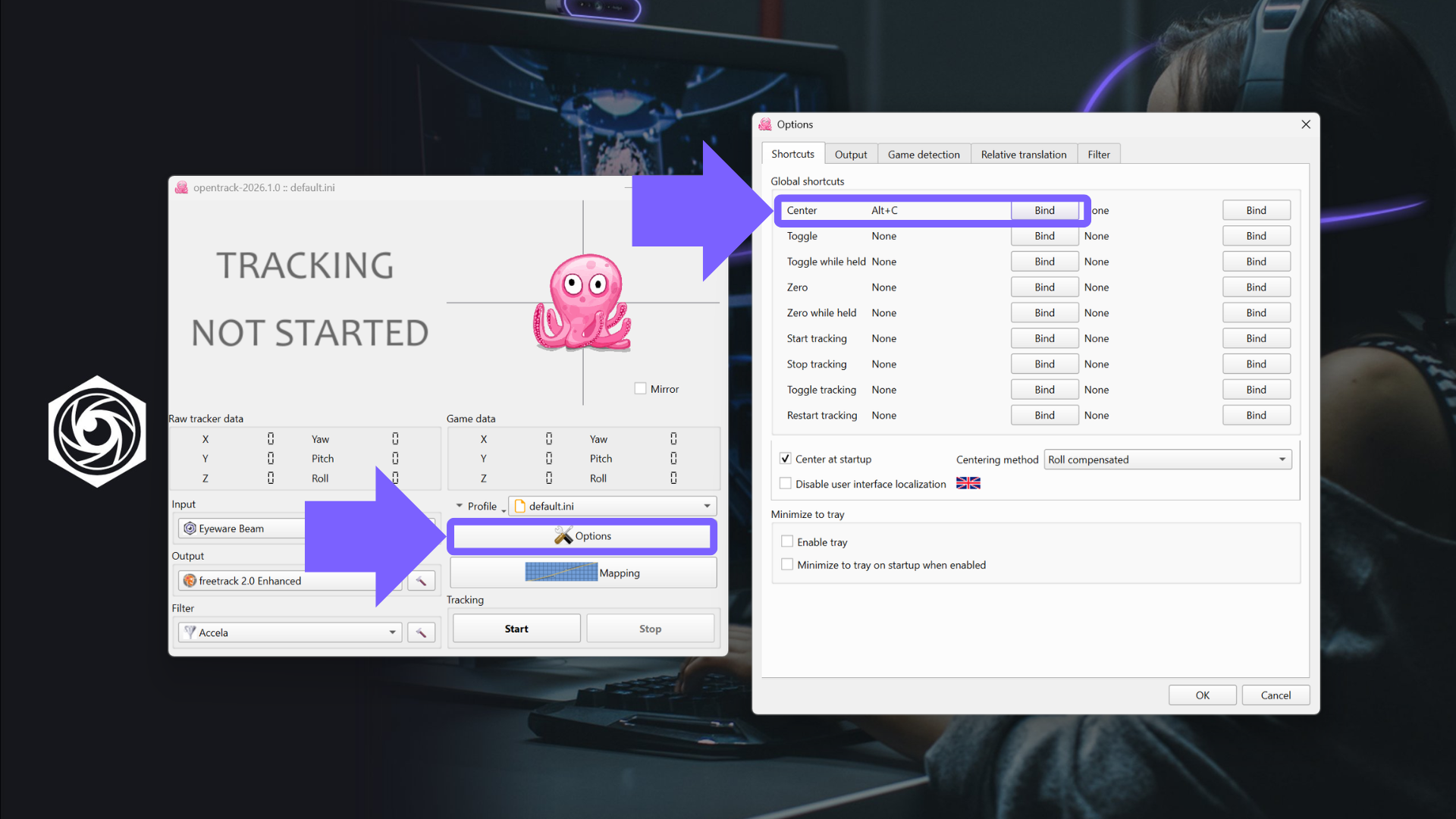
  2. Open Opentrack > Options > Shortcuts > Center, and assign the exact same binding (e.g. ALT+C)

Once you do that, pressing this hotkey will recenter the camera in both the Beam Eye Tracker and Opentrack, keeping them in sync with each other.

LAUNCH YOUR GAME

6

Launch your game

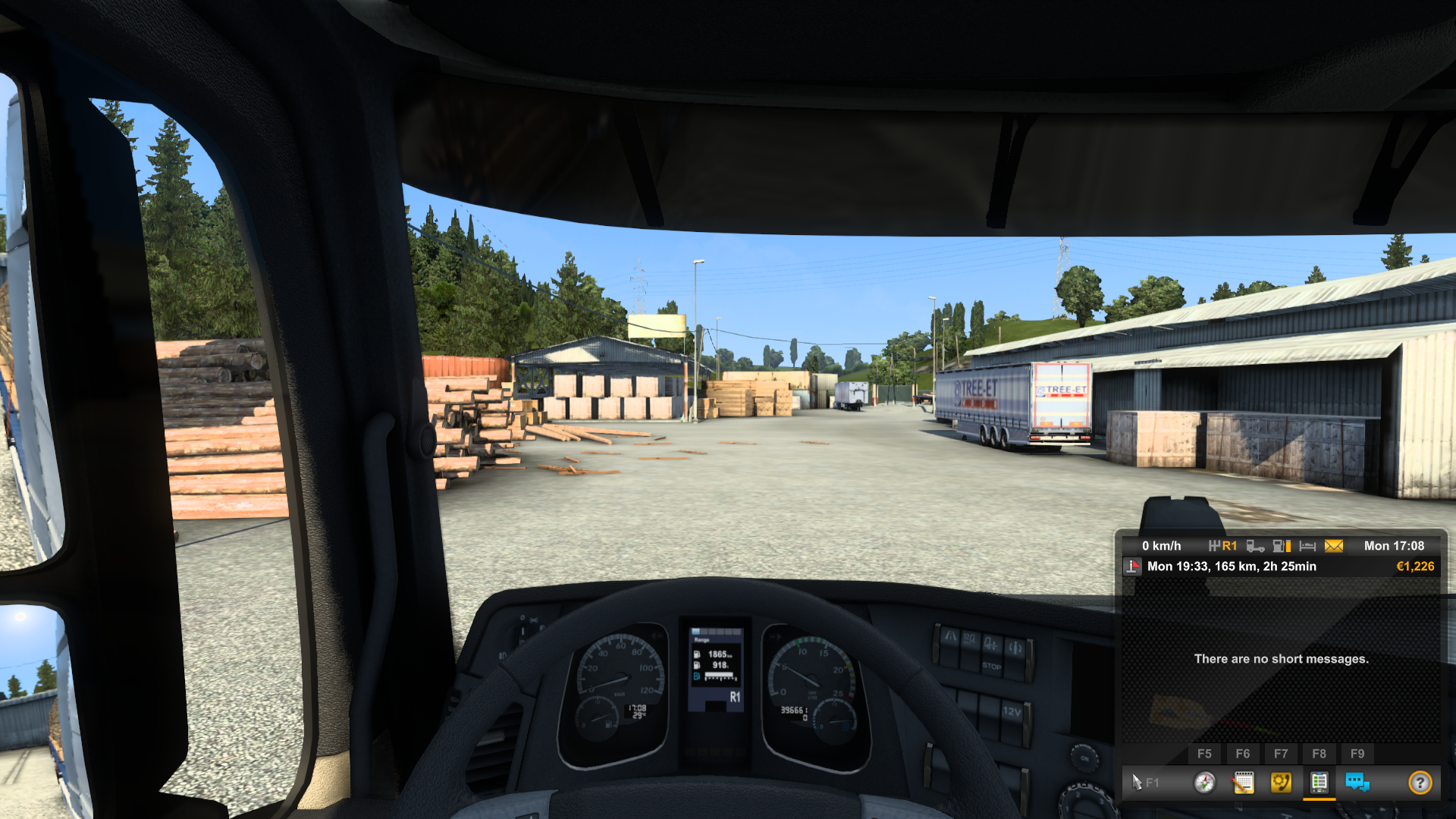
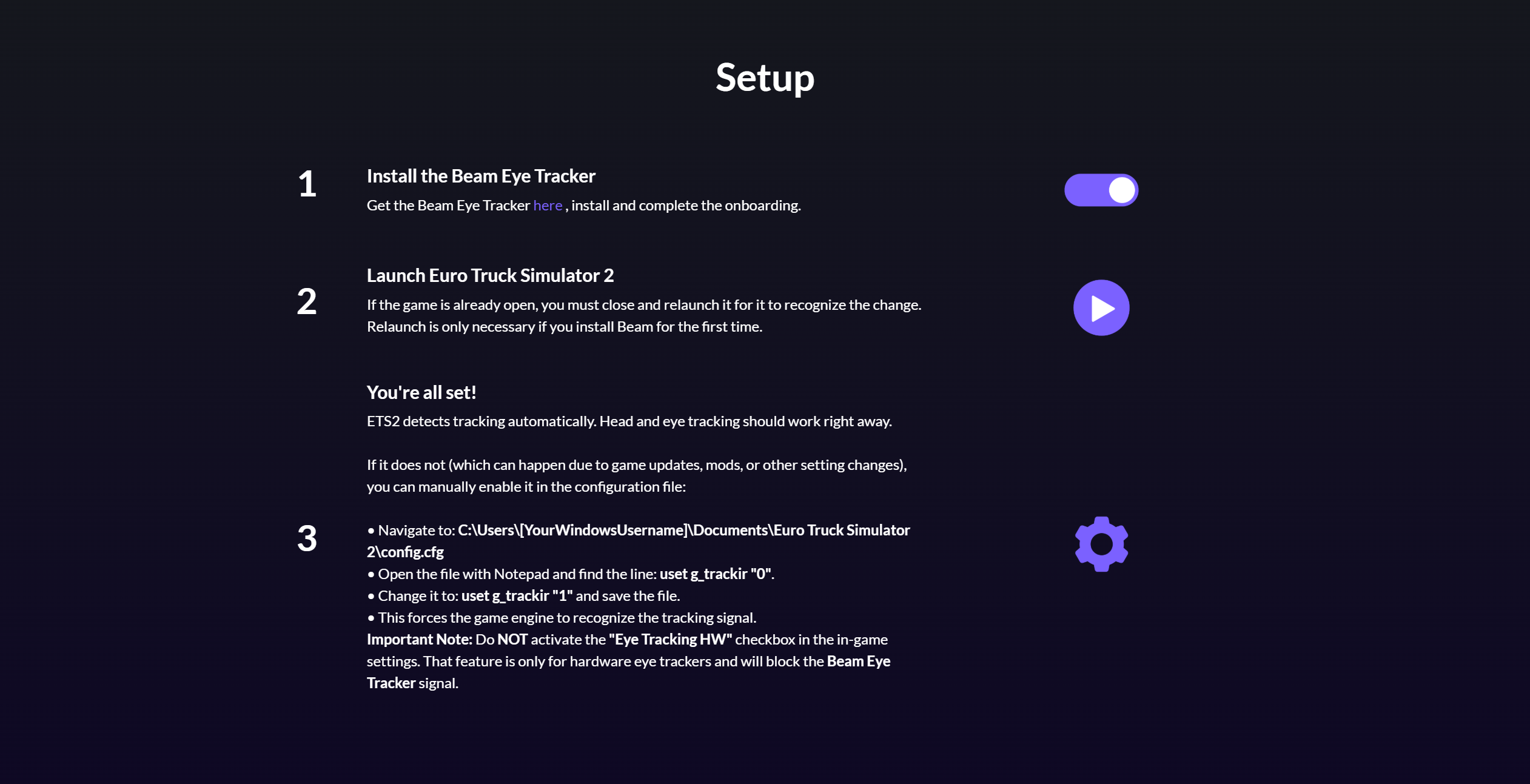
You don’t own a game yet that supports eye and head tracking? No problem. Many supported games offer free demos, such as Euro Truck Simulator 2.

Important: Please don’t stop here. Follow the steps below to achieve smoother tracking with reduced jitteriness and to customize your range of motion.

7

Use game-specific setup guides

Start or restart your game to control the in-game camera with your eye and head movements. There is no need for a change in the game settings for most games.

However, a few exceptions (e.g. Star Citizen, F1, Farming Simulator) require a quick in-game setting change. Please find here the list of games with links to game-specific setup guides.

optimize

8

Adjust Advanced Controls in Beam

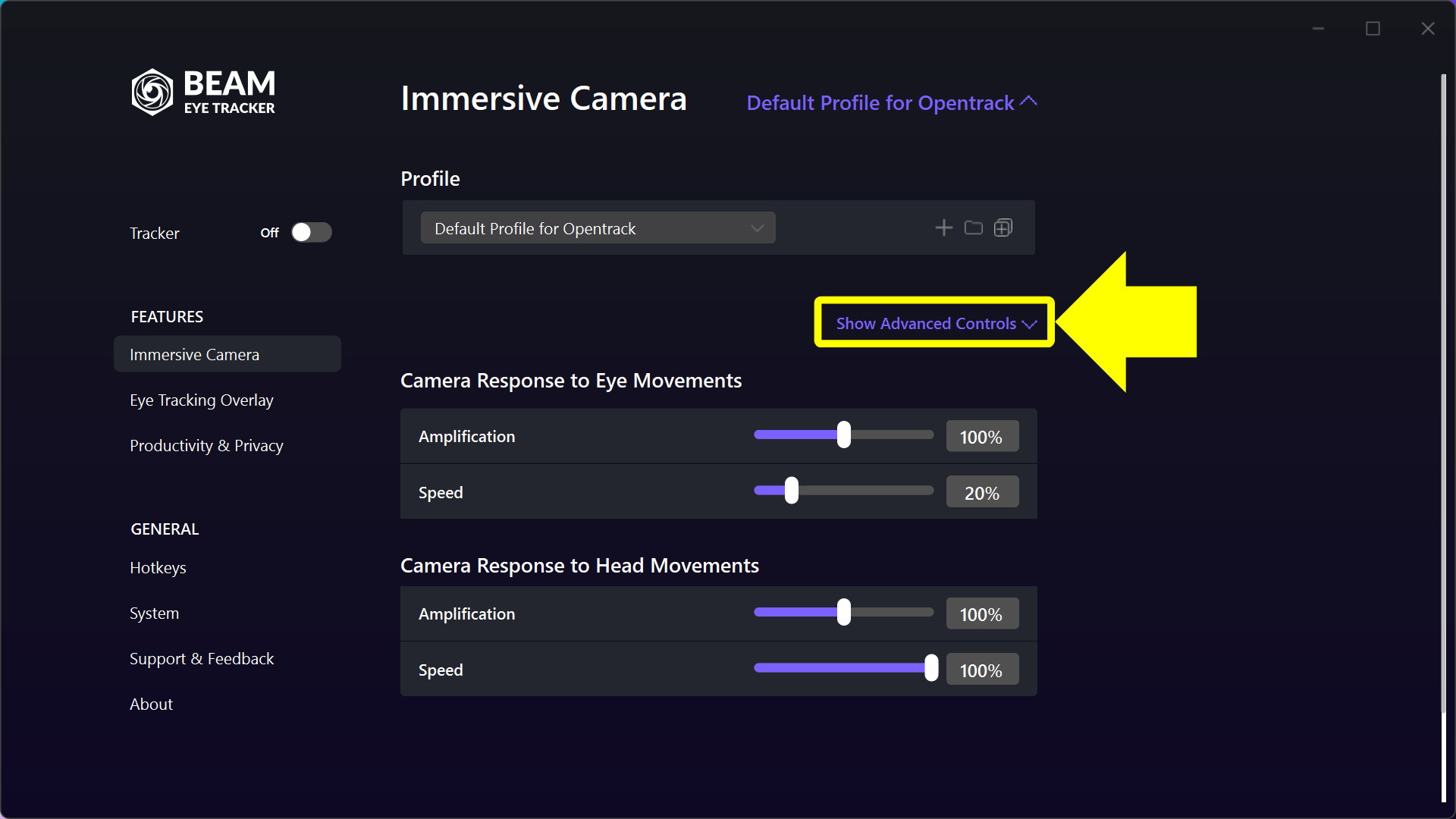
In that middle column, there is an option to Show Advanced Controls right under the profile section on the right. If you activate that, you will see the many adjustments that Beam offers.

The Default Profile for Opentrack profile provides a solid baseline tracking experience that you can further customize within the Advanced Controls in Beam and also in Opentrack (see steps below).

If you’ve used Beam with v2.4.5 or older and selected the profile Your Settings for Opentrack then you should can skip this step.

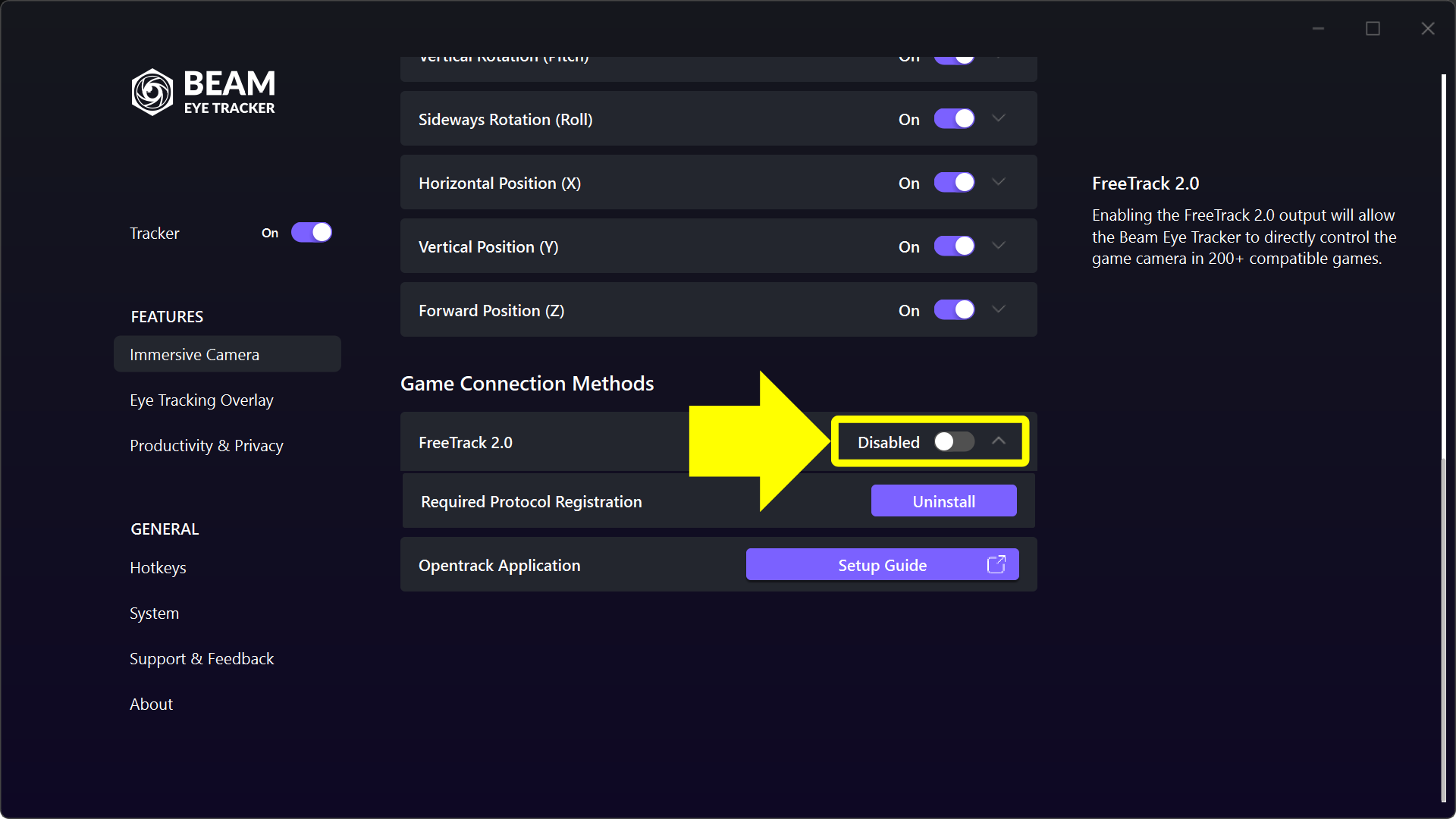
Note that the Default Profile for Opentrack profile turns Off the toggle under Advanced Controls > Game Connection Method > Freetrack 2.0 by default. This allows Opentrack to take control.

9

Adjust the head and eye tracking settings in Beam

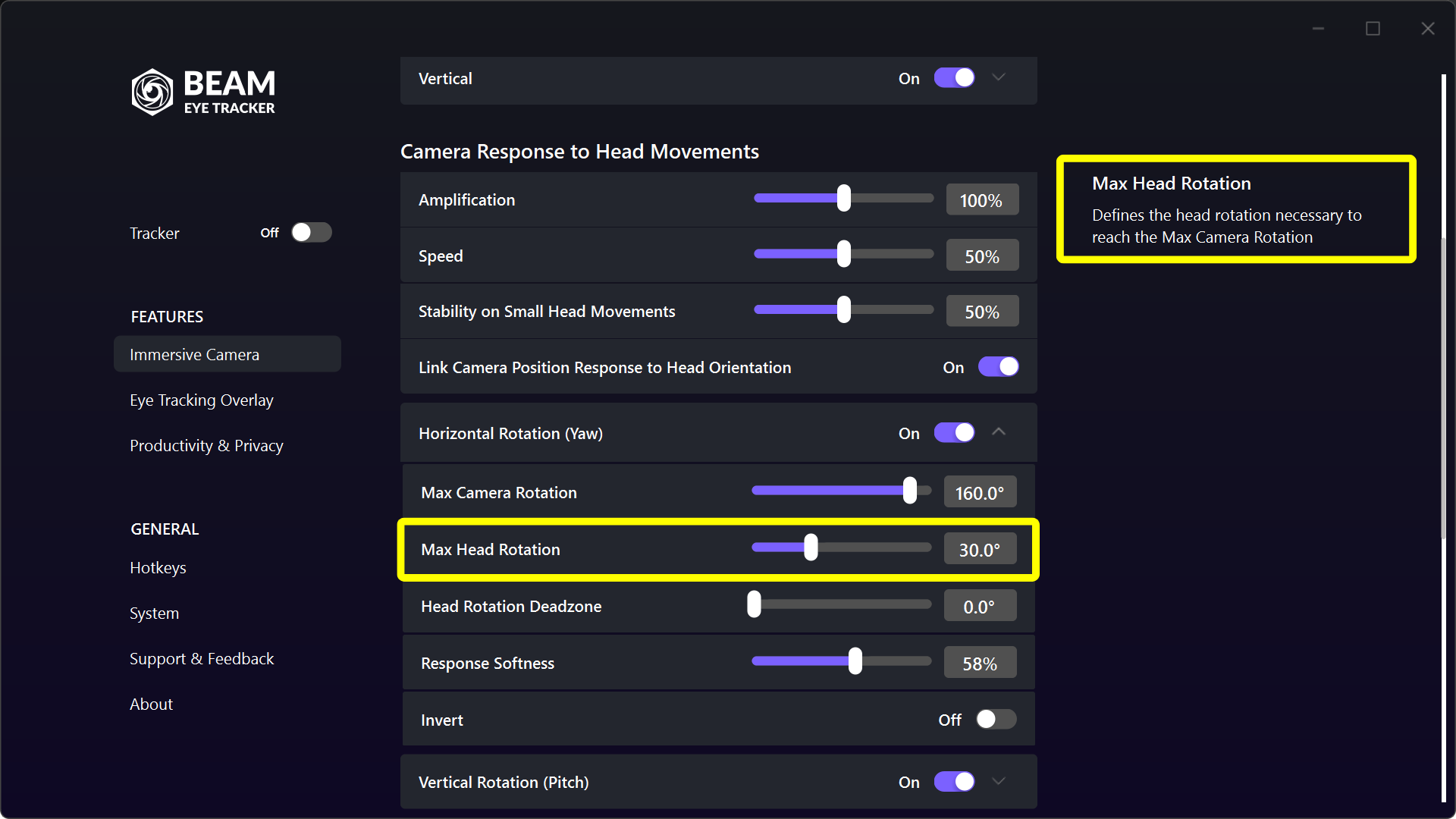
Start by adjusting the global settings under Immersive Camera. If further tweaking is required, adjust the corresponding rotation or translation axis under Advanced Controls. Make sure to use the tooltips on the right side for guidance.

10

Adjust your OpenTrack settings as needed

We recommend first tweaking settings in Beam (e.g., you might want to adjust the Yaw to amplify head rotation from 35° to 170°, change the Response Softness, set deadzones, etc.). Only switch to adjusting the curve in Opentrack if you’re not satisfied with the tracking performance after tweaking Beam’s settings.

[Legacy] Beam Eye Tracker v2.4.5 and older: Opentrack Setup Guide
setup THE BEAM EYE TRACKER

1

Get the Beam Eye Tracker

Get the Beam Eye Tracker here and follow the instructions.

Note: If the Beam Eye Tracker icon is not visible in your taskbar, click on the up arrow to display all tray apps. Then, drag the Beam Eye Tracker icon to your taskbar for easy access.

2

Enable Gaming Extensions

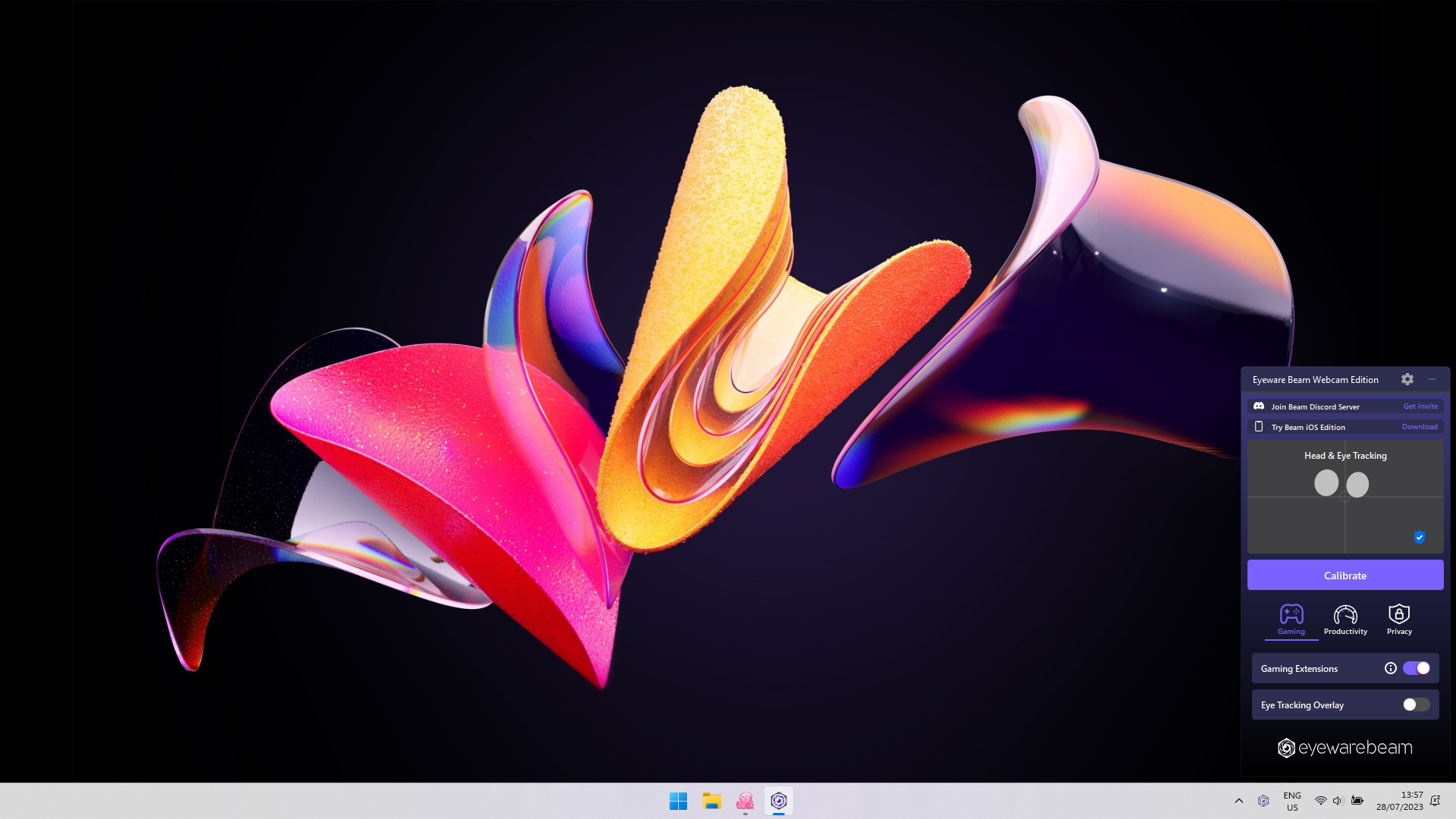
Find and click the Beam icon in the system tray. Enable Gaming Extensions. This lets apps like OpenTrack use Beam’s head and eye tracking data, expanding its uses.

SETUP opentrack

3

Download and install the free OpenTrack PC software

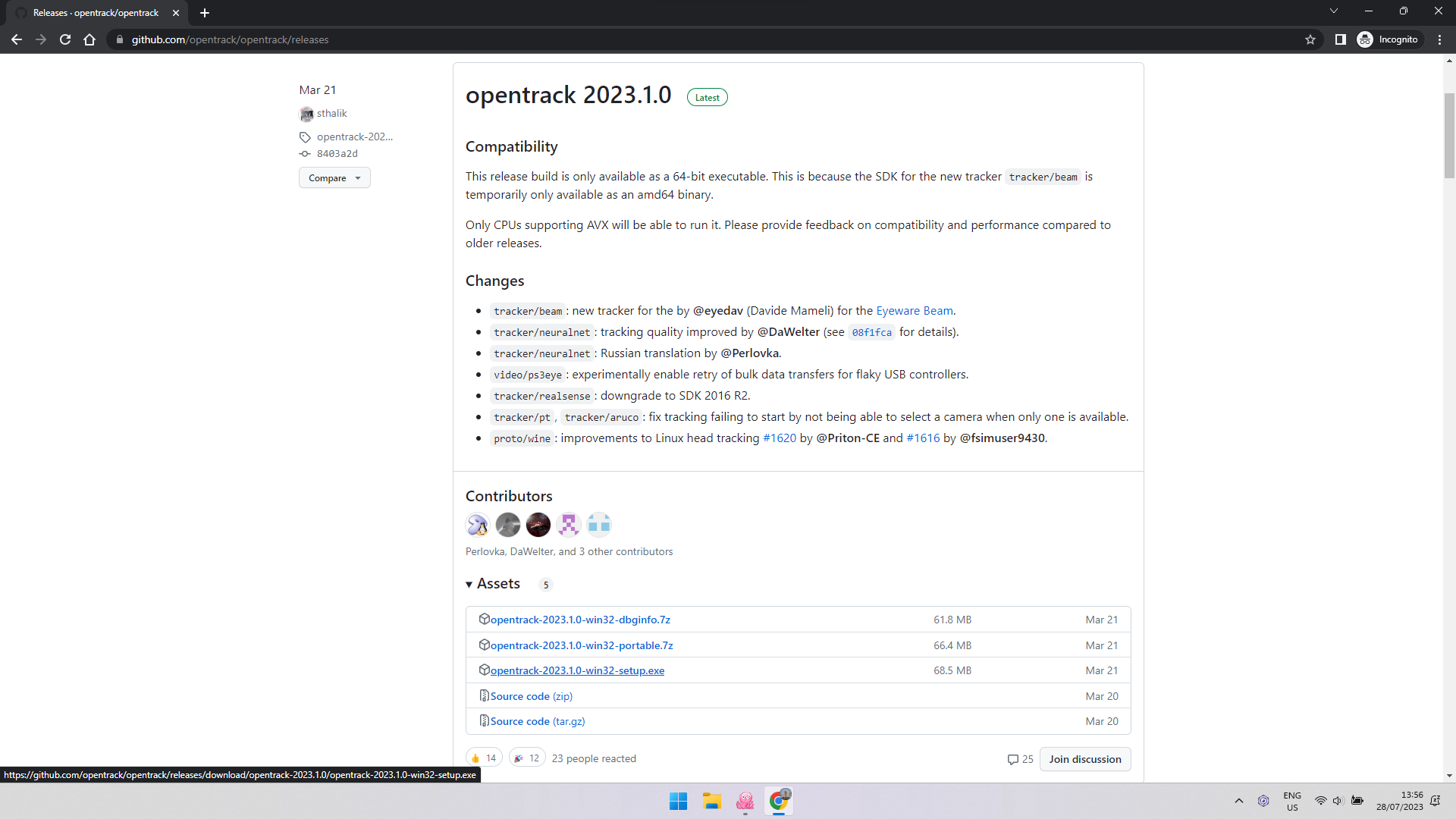
Download the free OpenTrack PC software.
OpenTrack is an open-source app that connects to over 200 games supporting head and eye tracking capabilities. Supported by an active community, OpenTrack is considered safe and reliable.

4

Start with a new and empty configuration file in OpenTrack

If you’ve previously set up OpenTrack, please begin with a new empty config file to ensure compatibility with Beam. If Beam feels different post-update, follow these steps: Open OpenTrack, stop tracking, click Profile, choose Create new empty config, name it, and save.

5

Assign a keyboard shortcut to the center method in OpenTrack

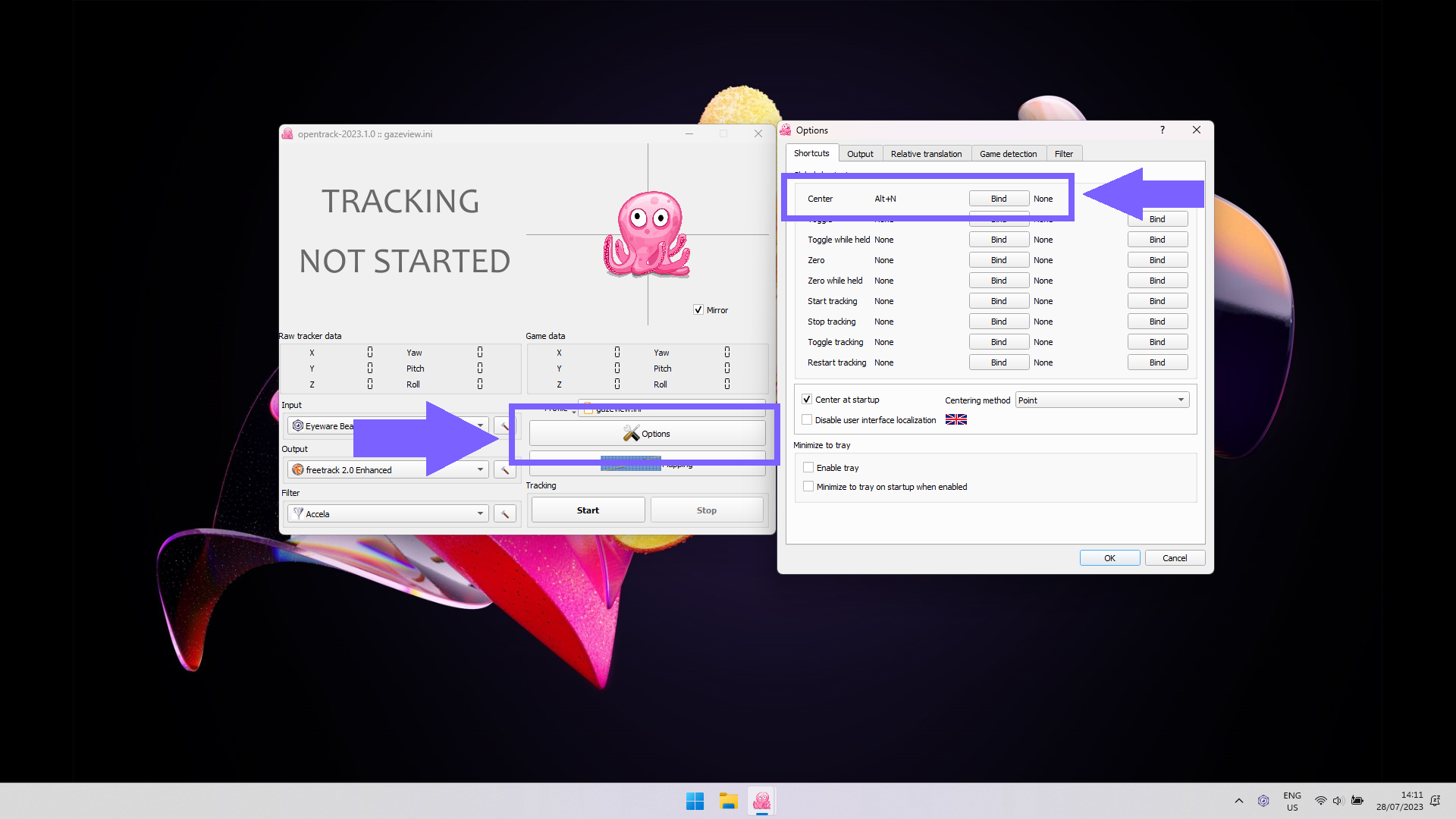
Go to OpenTrack, click on Options, and create a global shortcut for the Center method by clicking on Bind next to it and pressing the shortcut keys you would like to use for it. In the screenshot, we have chosen “Alt+N” to be the shortcut for the centering method.

Important: To ensure proper recentering, please position your head in the resting position and focus your gaze on the center of the screen before using the keyboard shortcut.

6

Change the input in OpenTrack to the Beam Eye Tracker

Click on Input and select “Eyeware Beam”. Then, click on Start to start tracking with OpenTrack. You should see the pink octopus reacting to your head and eye movements.

LAUNCH YOUR GAME

7

Launch your game and center the head tracking

Start your game and look at the middle of your screen. Press the Center global shortcut (e.g. Alt+N) to center the in-game camera to your default position.

You don’t own a game yet that supports eye and head tracking? No problem. Many supported games offer free demos, such as Euro Truck Simulator 2.

Important: Please don’t stop here. Follow the steps below to achieve smoother tracking with reduced jitteriness and to customize your range of motion.

8

Use game-specific setup guides

Start or restart your game to control the in-game camera with your eye and head movements. There is no need for a change in the game settings for most games.

However, a few exceptions (e.g. Star Citizen, F1, Farming Simulator) require a quick in-game setting change. Please find here the list of games with links to game-specific setup guides.

optimize

9

Adjust the head and eye tracking settings in Beam

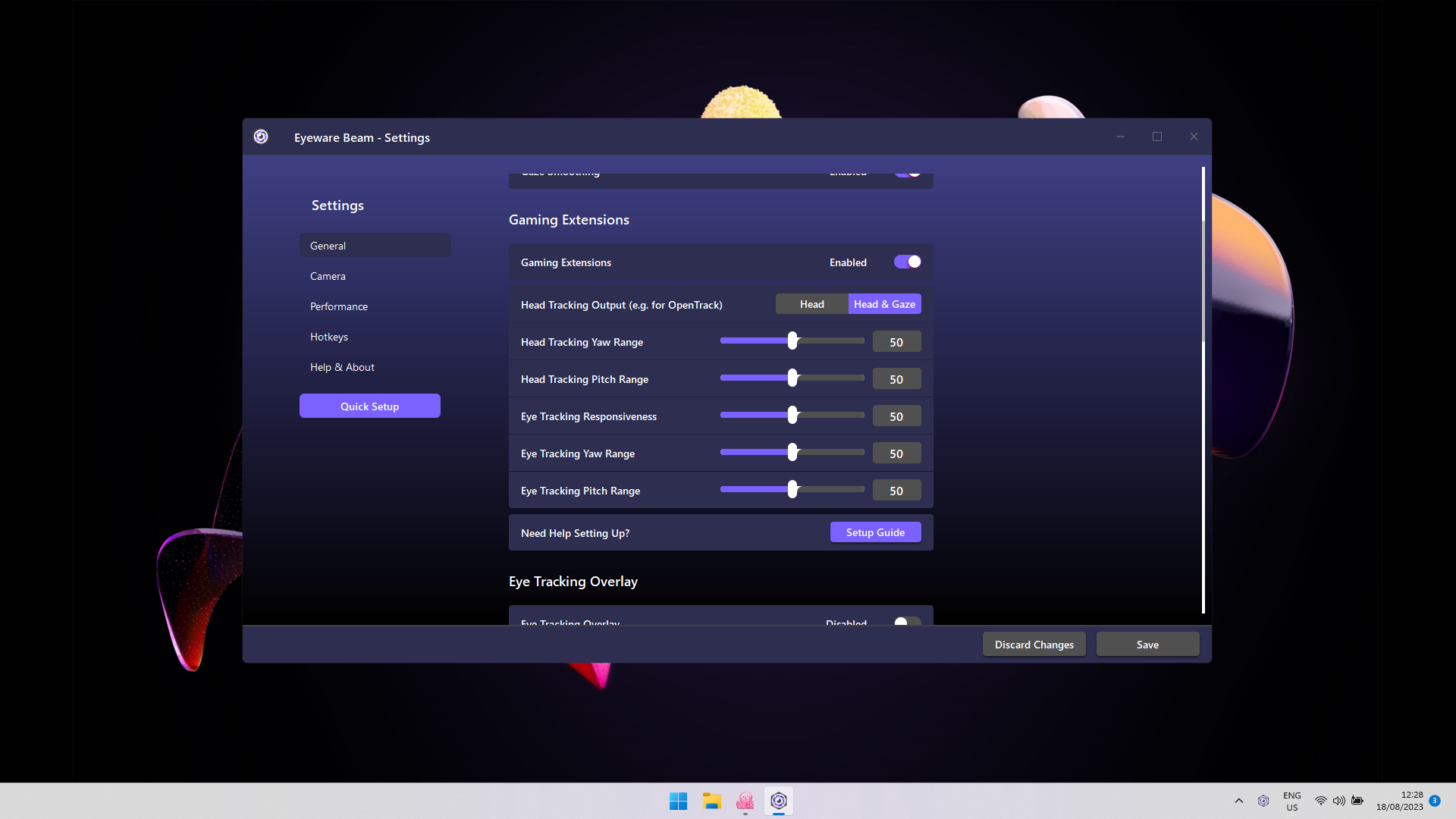
Click the Beam tray icon. Select the ⚙️ located at the top right.

In the Gaming Extensions section, under Head Tracking Output for OpenTrack, select Head & Gaze for combined tracking or Head for just head tracking.

Adjust range values to change camera responsiveness based on head or eye movements
  • Yaw means left-right and Pitch is up-down.
  • Maximum range is from -90 to +90 degrees.
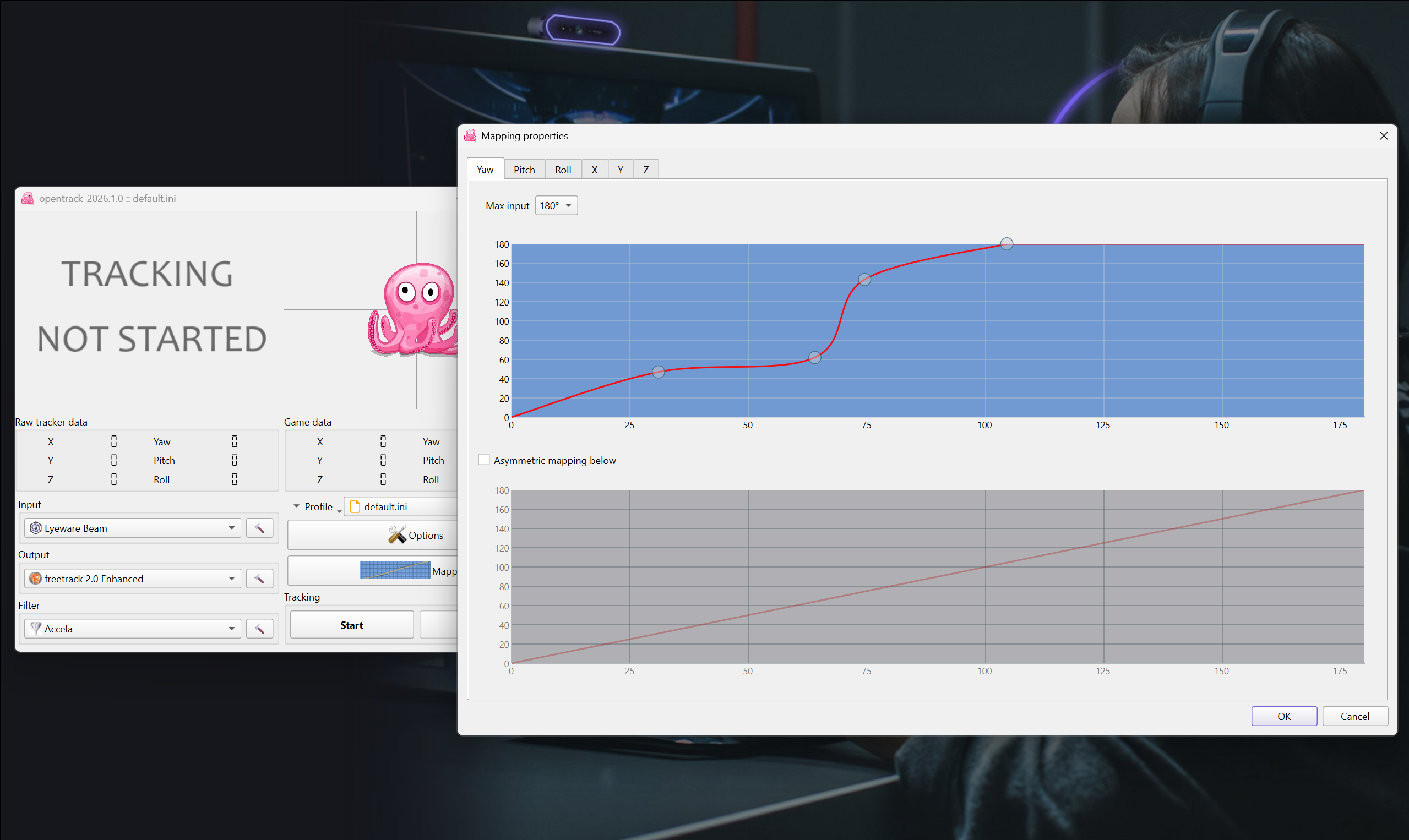
  • For extended angles like 180°, modify the mapping in OpenTrack.
  • Be cautious with high eye tracking sensitivity as it can cause nausea.

Important! First adjust yaw and pitch in Beam settings. Only tweak in OpenTrack if needed for best results.

10

Adjust your OpenTrack settings
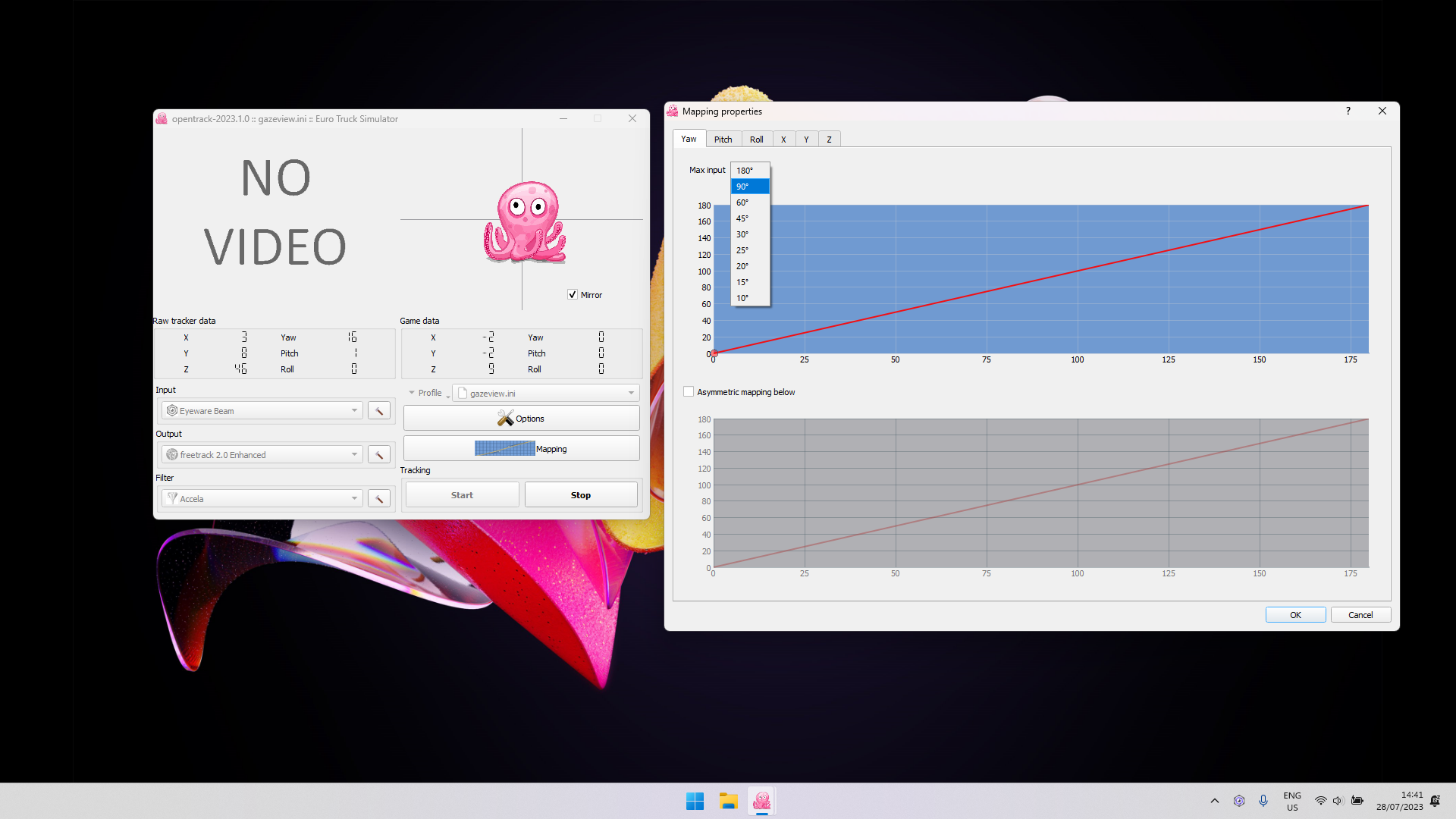
  • To view behind you in-game: In OpenTrack’s Mapping section, select the Yaw tab and set the maximum input to 90°. Adjust the Yaw curve for comfort.
  • Tailor the Pitch curve if needed.
  • If you notice jittering, fine-tune the Accela filter parameters by clicking the hammer icon next to Filter at the bottom right in OpenTrack’s main window.
[Legacy] Eyeware Beam iOS Edition: Opentrack Setup Guide (Pre-2024)
Note: This covers the pre-2024 version. We strongly recommend upgrading to the Beam Eye Tracker. The iOS app still works as a free camera input for Beam.
Play Video
Minimum Requirements

1

The iOS app for your iPhone or iPad captures your head movements and accompanying Eyeware PC software translates those movements into on-screen actions in games and streams.

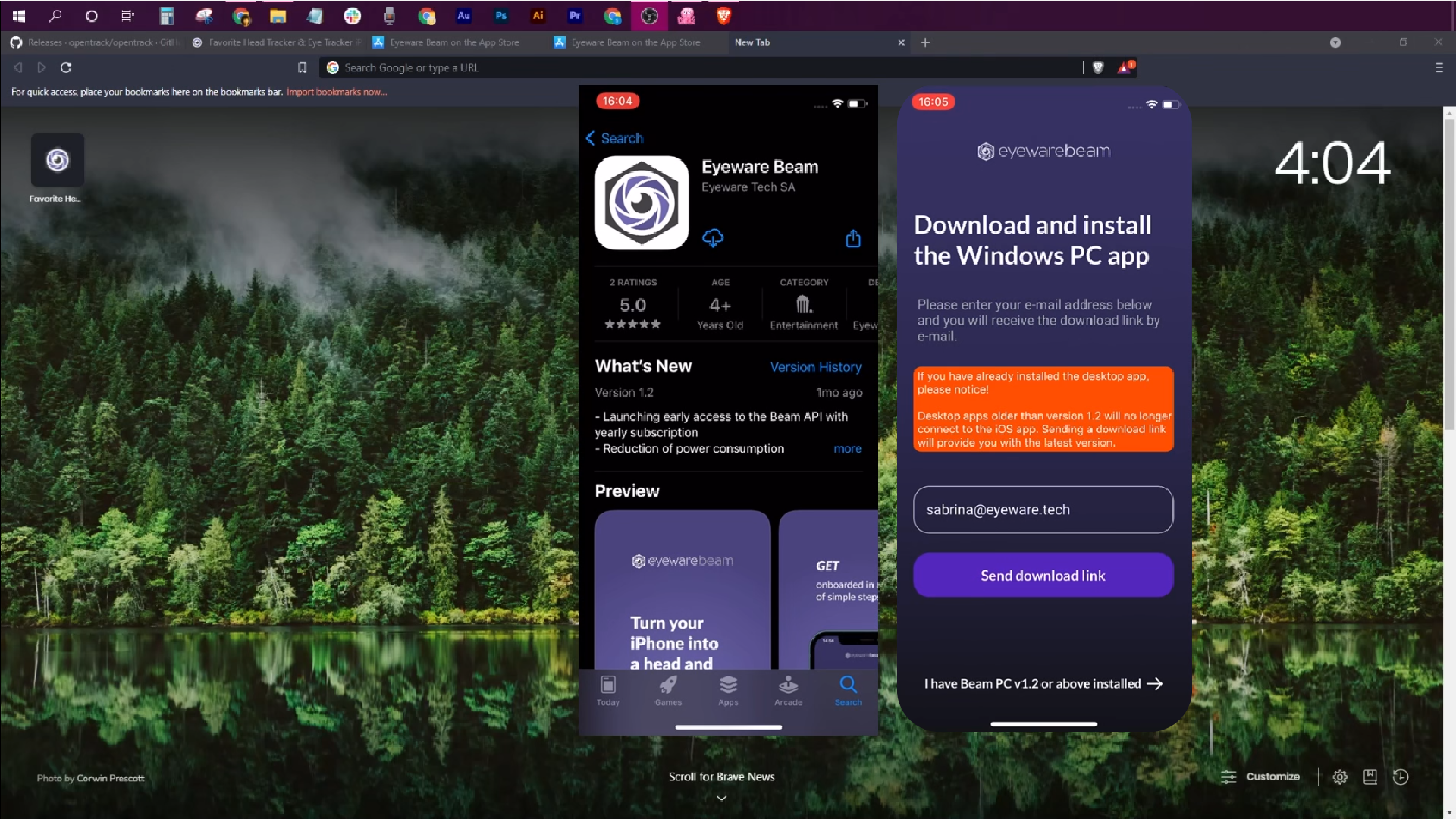
Download the Eyeware Beam iOS app from the app store. As you are installing the app, you will be asked to enter your email address to receive the download link for the accompanying PC software installer. Download and install the software on your PC.

2

Turn your iPhone or iPad into a head tracker

Set up your iPhone or iPad as a head tracker with our quickstart guide. Please complete the quickstart guide first before moving to the next step.

3

Purchase a subscription to enable head tracking

A monthly or annual paid subscription is required to use head tracking. Within the app, tap on the Settings icon > Reminders > Subscriptions. You will then be brought through a series of subscription purchase and confirmation steps to complete the transaction.

4

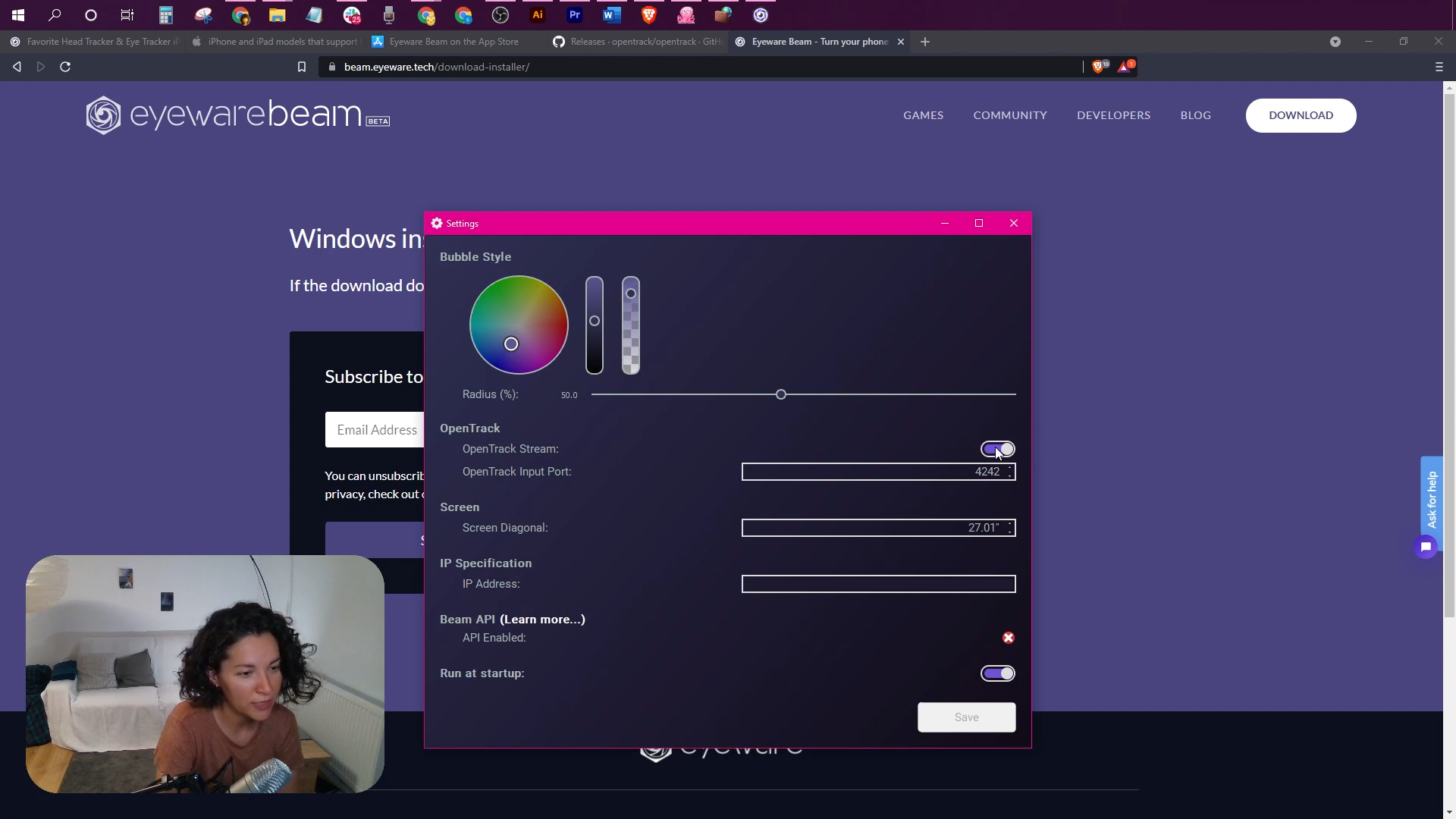
Turn the OpenTrack stream toggle on in the Beam settings
  • Click the Beam PC software icon in the tray menu.
  • Click on the burger menu (3 horizontal lines).
  • Select Settings at the bottom right of the Eyeware Beam PC software.
  • Turn the OpenTrack stream toggle ON.

5

Download, install and open the free OpenTrack PC software

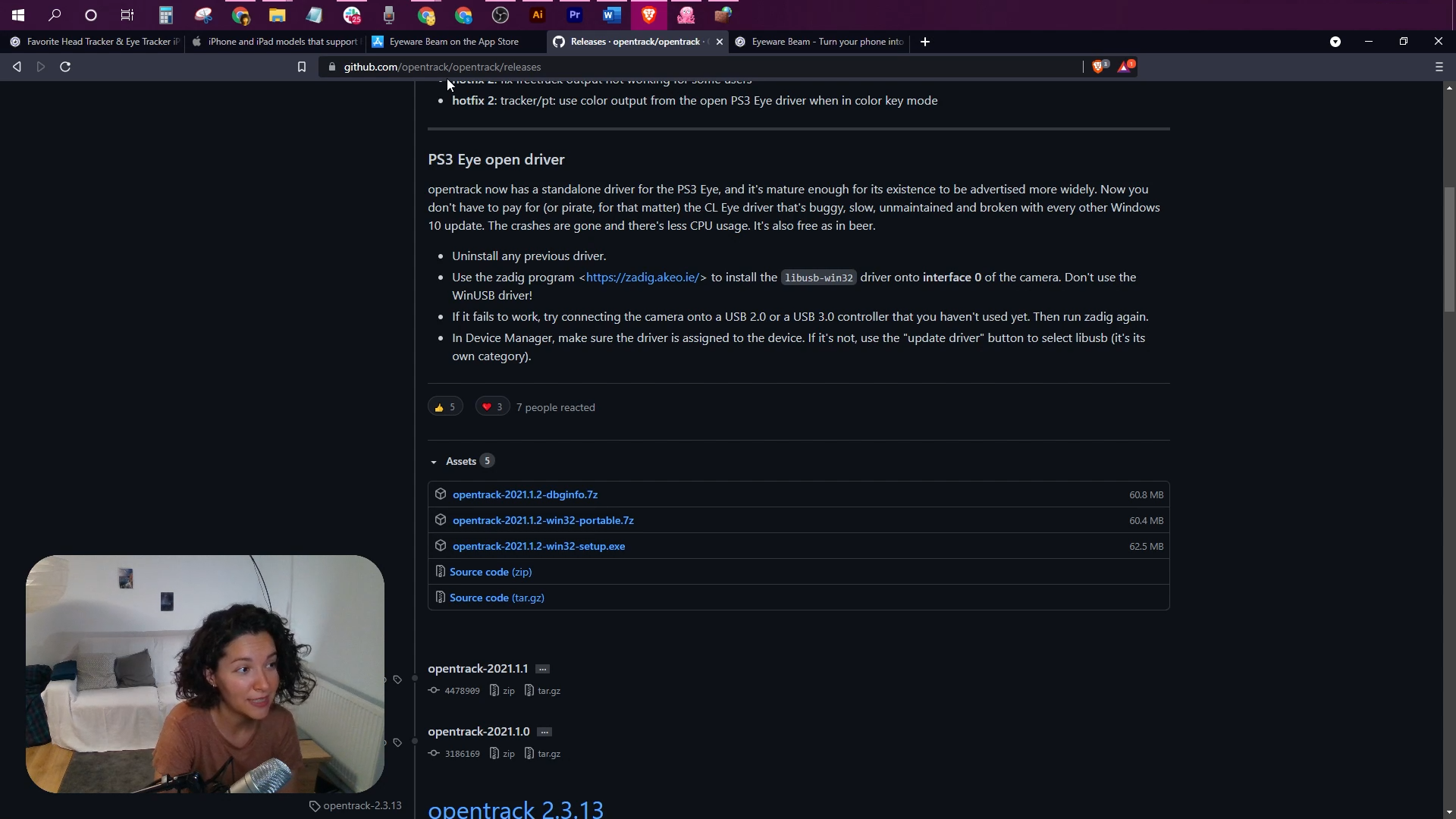
Download the free OpenTrack PC software. The link provides the most recent OpenTrack release. Scroll down to the assets area and download the .exe file. Install OpenTrack and open the software to begin the configuration steps.

6

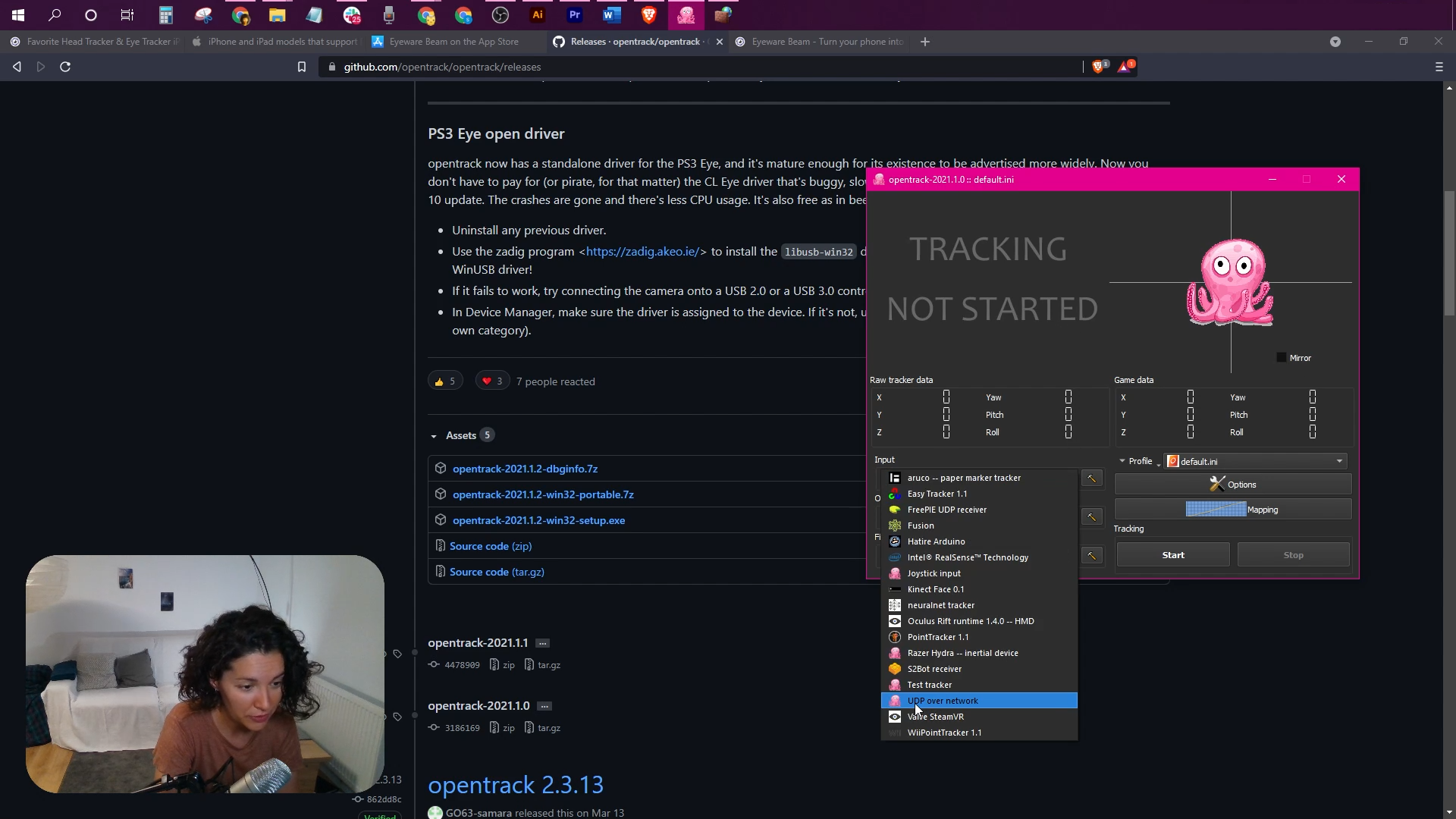
Select Input type

Click on the Input dropdown list and select the UDP over network.

7

Select port number

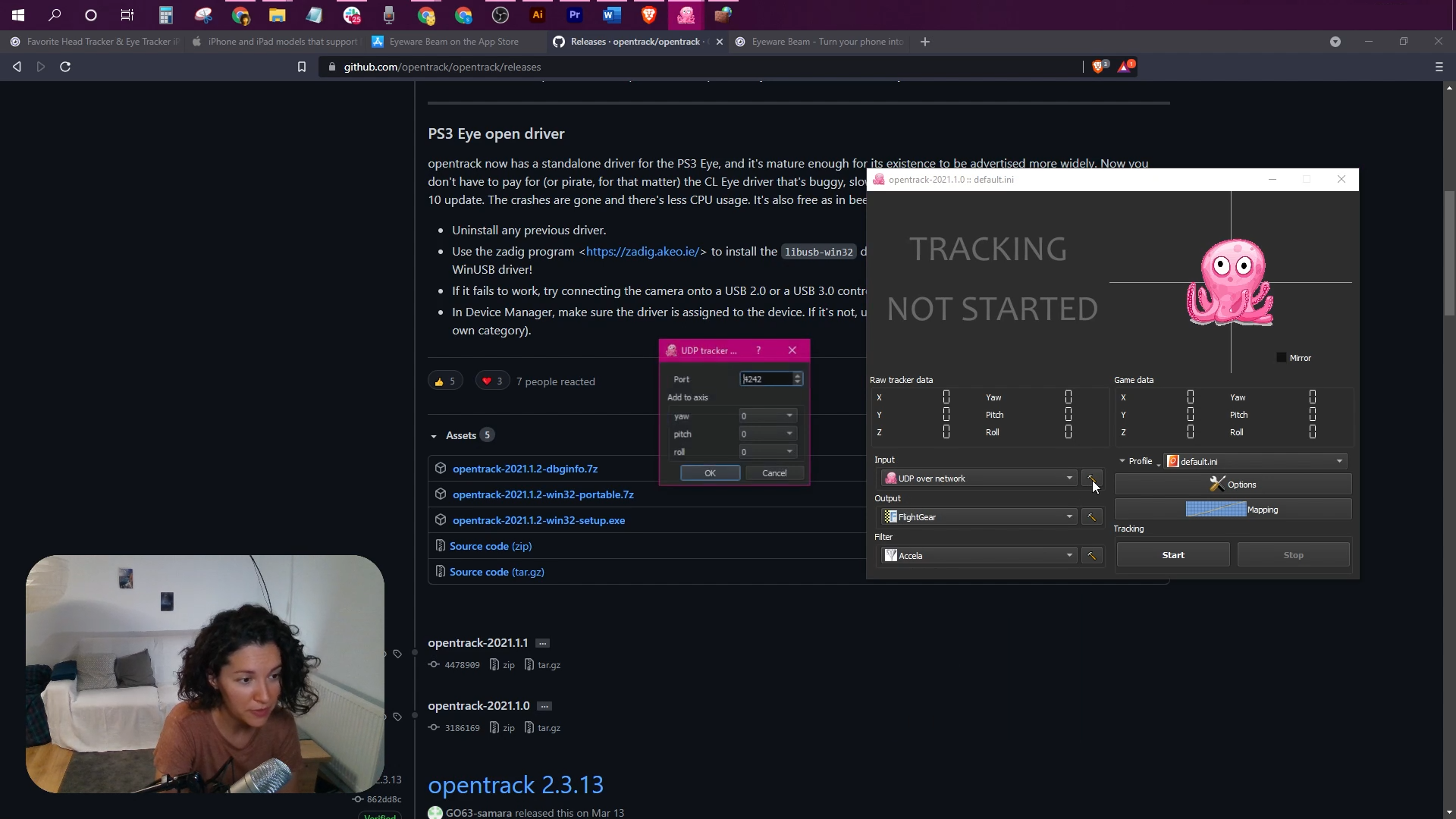
Click on the setup icon next to Input. Type port 4242.

8

Select Output type

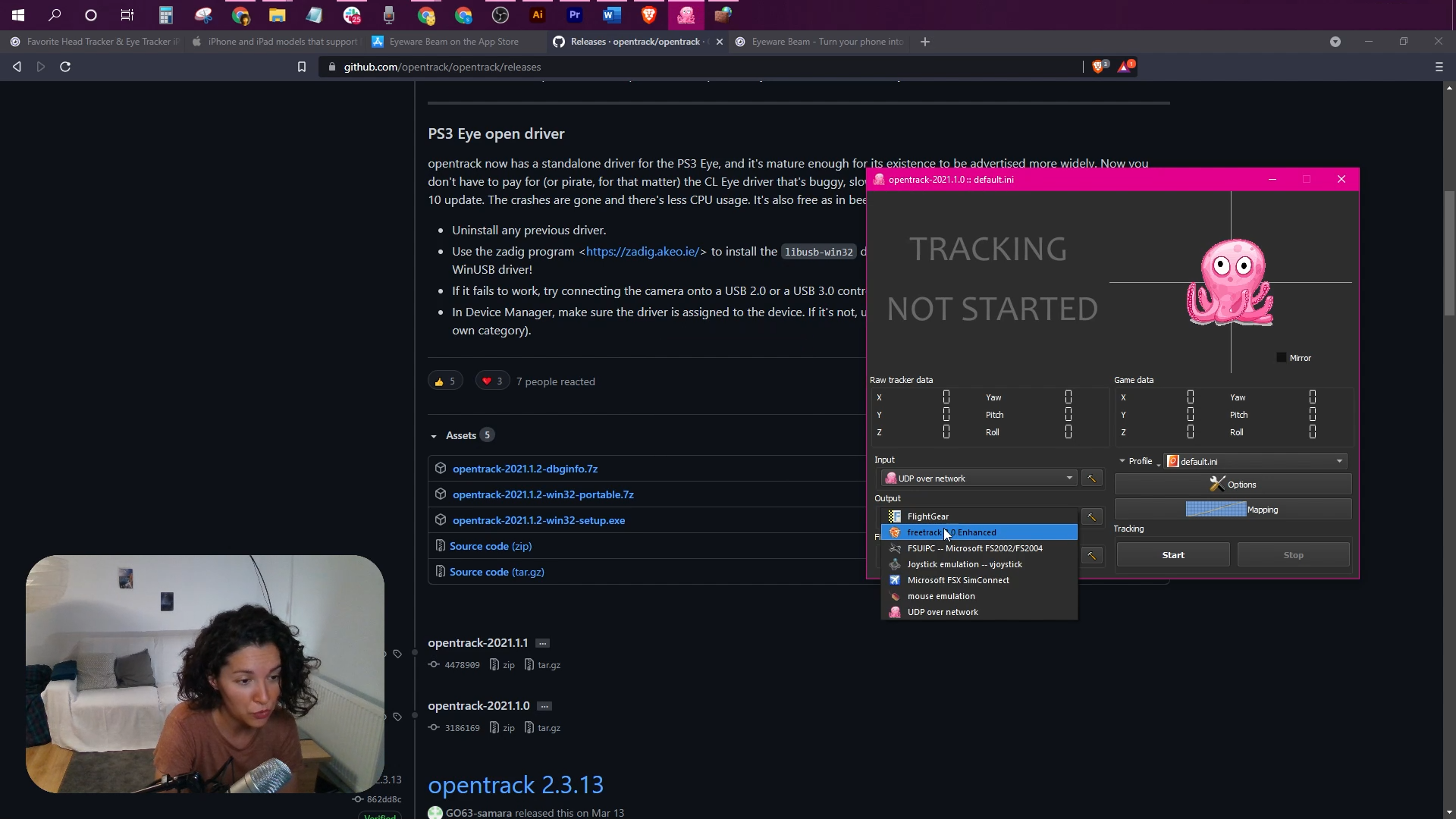
Click on the Output dropdown list and select the freetrack 2.0 Enhanced option.

9

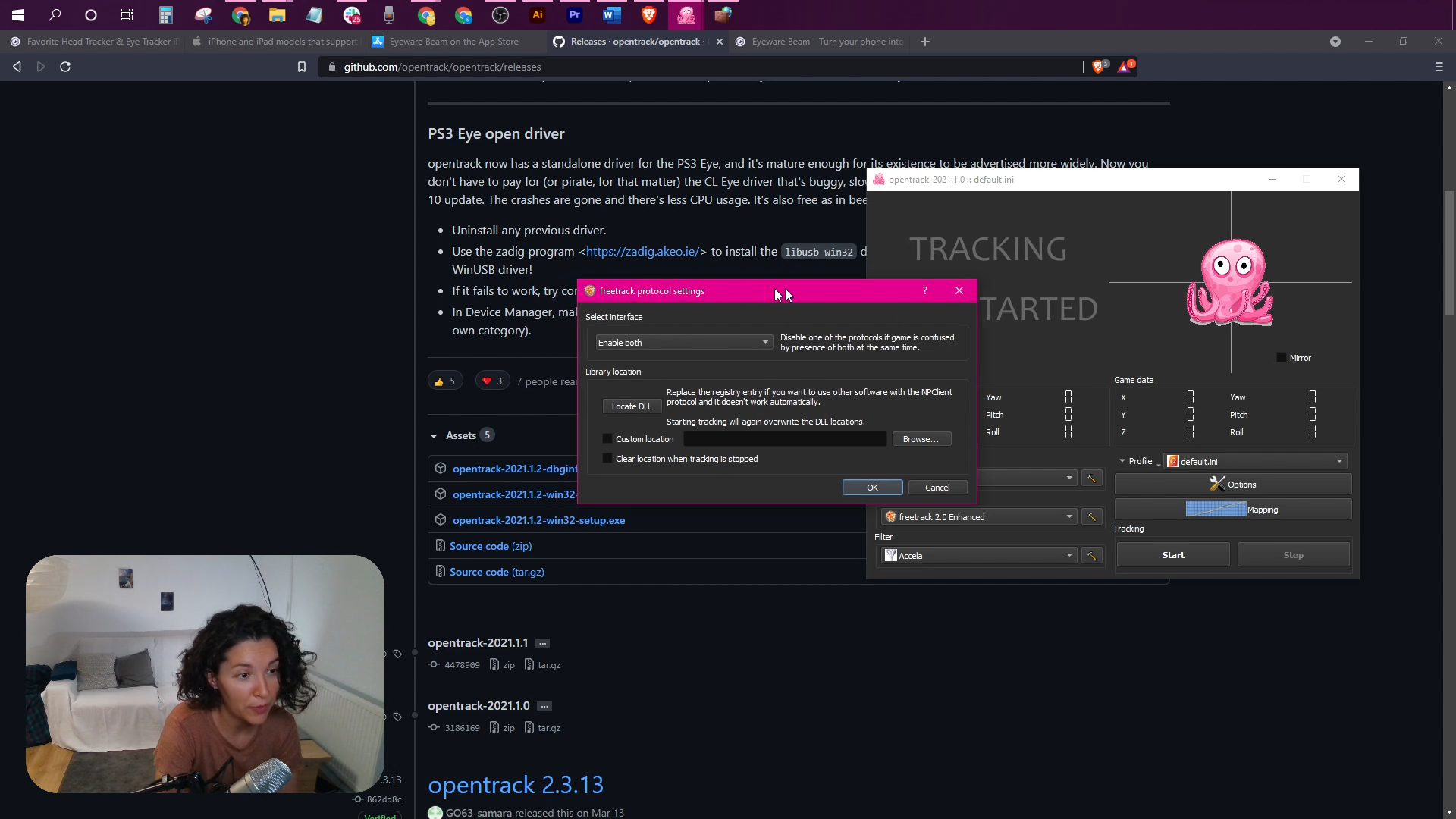
Select 'Enable both' under freetrack protocol settings

Click on the setup icon next to Output. In the Select interface panel, from the dropdown list select the Enable both option.

10

Select the PC game you will use with head tracking
  • Click on the Options button.
  • Select the Game detection tab.
  • Click on the “+” sign at the bottom.
  • Click on the three dots button on the new line that was just created.
  • Select the executable file for the game you want to enable head tracking in.

11

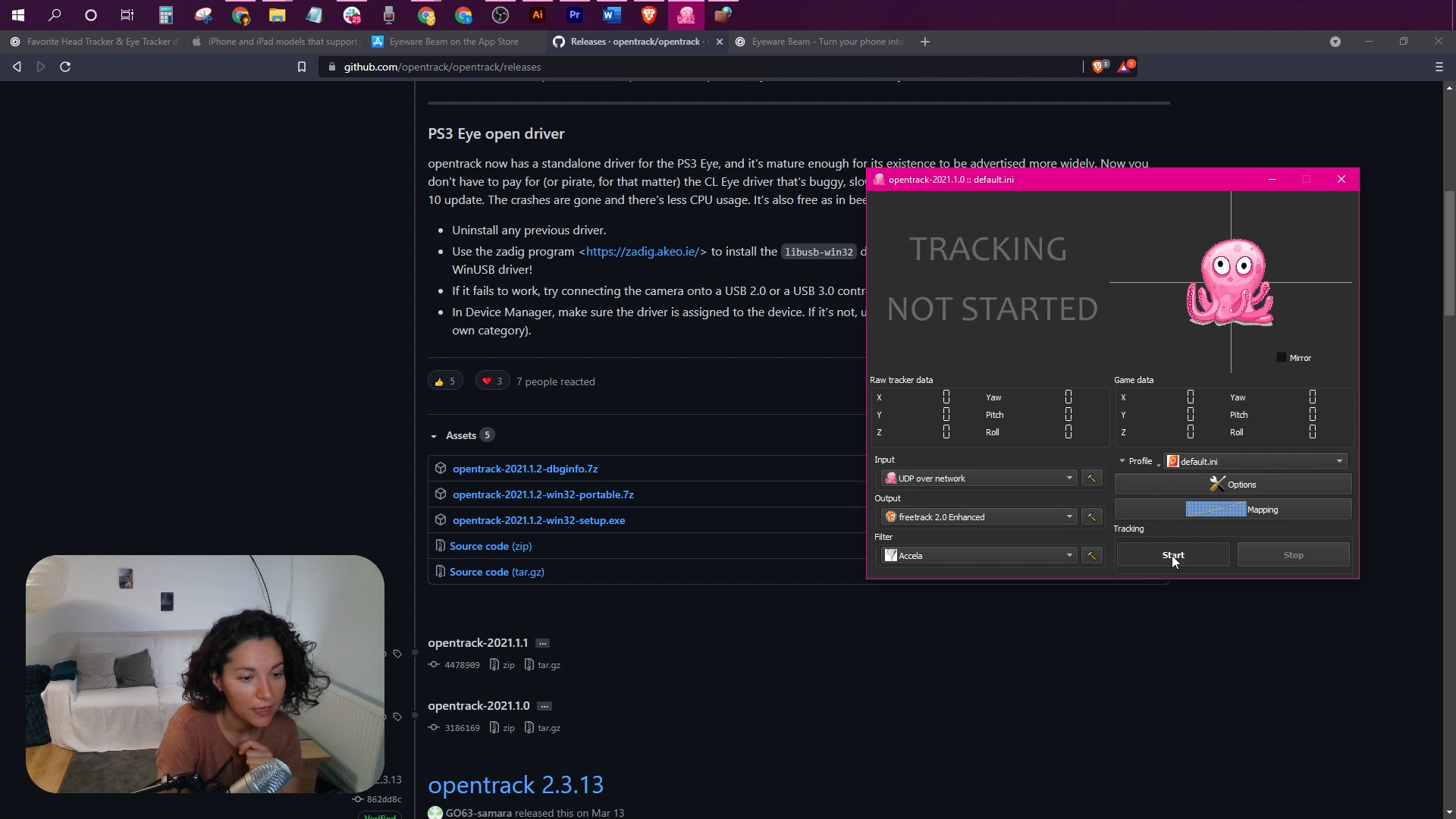
Click the Start button and play your game using head tracking

Click the Start button in OpenTrack to activate the octopus that should be moving based on your head movements.

If head tracking is inverted, go to Options > Output and check to invert either the Yaw, Pitch, or Roll.

Adjust the Curves to control the sensitivity of your head movements.

You can try the following OpenTrack profile with pre-configured settings for the Eyeware Beam app to get you closer to your ideal setup.

  • Download the pre-configured Beam OpenTrack profile: https://drive.google.com/file/d/1ONjS2yhCe3ddcI6lChp5VDLZqLkGd0oA/view
  • Open OpenTrack and click on Profile Open configuration directory to open the folder where the OpenTrack default profile is stored.
  • Move the pre-configured Beam OpenTrack profile you just downloaded into that folder.
  • In OpenTrack, click on the menu next to Profile and select the newly added Beam OpenTrack profile which now appears as an option (next to default.ini)
Notes for the legacy Eyeware Beam iOS Edition
Eyeware Beam head tracking will only work when both the iOS Eyeware Beam app and the Eyeware Beam Windows PC software from step 1 is installed.
You will need to install OpenTrack to enable head tracking in games. If you can’t find the Eyeware Beam computer application on your screen, it might be running in the background. You can find the app with the purple logo in the system tray menu, usually located at the bottom right of your screen. We strongly recommend switching to the Beam Eye Tracker!

Hundreds of Supported PC Games