Bus Simulator 21 Head & Eye Tracking with Beam Eye Tracker
Follow this complete guide to add more immersion in Bus Simulator 21.
Setup
Windows
-
Install the Beam Eye Tracker for Windows
Get the Beam Eye Tracker, install it and complete the onboarding.
Keep the default Head Tracking Device Emulation method selected under General > Game Connection.
-
Launch Bus Simulator 21
If the game is already open, you must close and relaunch it for it to recognize the change. Relaunch is only necessary if you install Beam for the first time.
-
Done
No change required in Bus Simulator 21 settings.
Linux
RequirementsBeam 2.6.4 or newer
-
Install the native Beam Eye Tracker for Linux
Versions
UseStandaloneDownload the AppImage from your account page. Do not have Beam yet? Get the Beam Eye Tracker.
If the AppImage doesn't run when you double-click it, open a terminal in your Downloads folder and run:
chmod +x BeamEyeTracker-x86_64.AppImageUseSteamInstall the Beam Eye Tracker from your Steam library. Beam is designed to run natively, so leave Force the use of a specific Steam Play compatibility tool unchecked in its properties.
Do not useWindows version in Proton or WineNot supportedGame Connection
Keep the default Head Tracking Device Emulation method selected under General > Game Connection.
-
Launch the Windows build of Bus Simulator 21
Versions
UseWindows build of Bus Simulator 21Through Proton or WineDo not useNative Linux buildDevice emulation does not reach it- To reach Bus Simulator 21, Beam configures its Proton or Wine prefix, the compatibility environment.
- Games installed through Steam are configured by Beam on its own.
- For a game running on a separate Wine setup outside Steam, launch the game at least once while Beam is running, so it is recognized and configured.
- Bus Simulator 21 has to be relaunched once it has been configured.
- Use the General > Game Connection settings in the Beam Eye Tracker to manage discovered compatibility environments and to troubleshoot.
- To reach Bus Simulator 21, Beam configures its Proton or Wine prefix, the compatibility environment.
-
Done
No change required in Bus Simulator 21 settings.
macOS
RequirementsBeam 2.6.4 or newermacOS 15.0 or newer
-
Install the native Beam Eye Tracker for macOS
Versions
UseStandaloneDownload the .dmg from your account page. Do not have Beam yet? Get the Beam Eye Tracker.
UseSteamInstall the Beam Eye Tracker from your Steam library, using the macOS native Steam client.
Do not useWindows version in CrossOverNot supportedGame Connection
Keep the default Head Tracking Device Emulation method selected under General > Game Connection.
-
Launch Bus Simulator 21 in CrossOver
Versions
UseWindows build of Bus Simulator 21Through CrossOver- CrossOver is the only compatibility environment Beam supports on macOS today.
- To reach Bus Simulator 21, Beam configures the compatibility environment it runs in, from CrossOver. It does that on its own for the environments it discovers.
- macOS asks the first time, because CrossOver keeps its environments in another app's data. Allow it, or Beam has nothing to configure. If you dismissed the prompt, or Beam still cannot configure the environment, turn on Beam Eye Tracker under System Settings > Privacy & Security > App Management, then quit and reopen Beam.
- Check in General > Game Connection that Beam found and configured it. If Bus Simulator 21 or its environment is not listed, start Bus Simulator 21 and Beam picks it up.
- Relaunch Bus Simulator 21 once the environment is configured. If it was running while that happened, close it and start it again.
-
Done
No change required in Bus Simulator 21 settings.
Optimize
1 Basic ControlsAdjust Speed and Amplification to get started.
your eyes/headthe in-game camera
2 Advanced ControlsFine-tune each degree of freedom individually.
In the Immersive Camera, click Show Advanced Controls at the top right to fine-tune each degree of freedom individually.
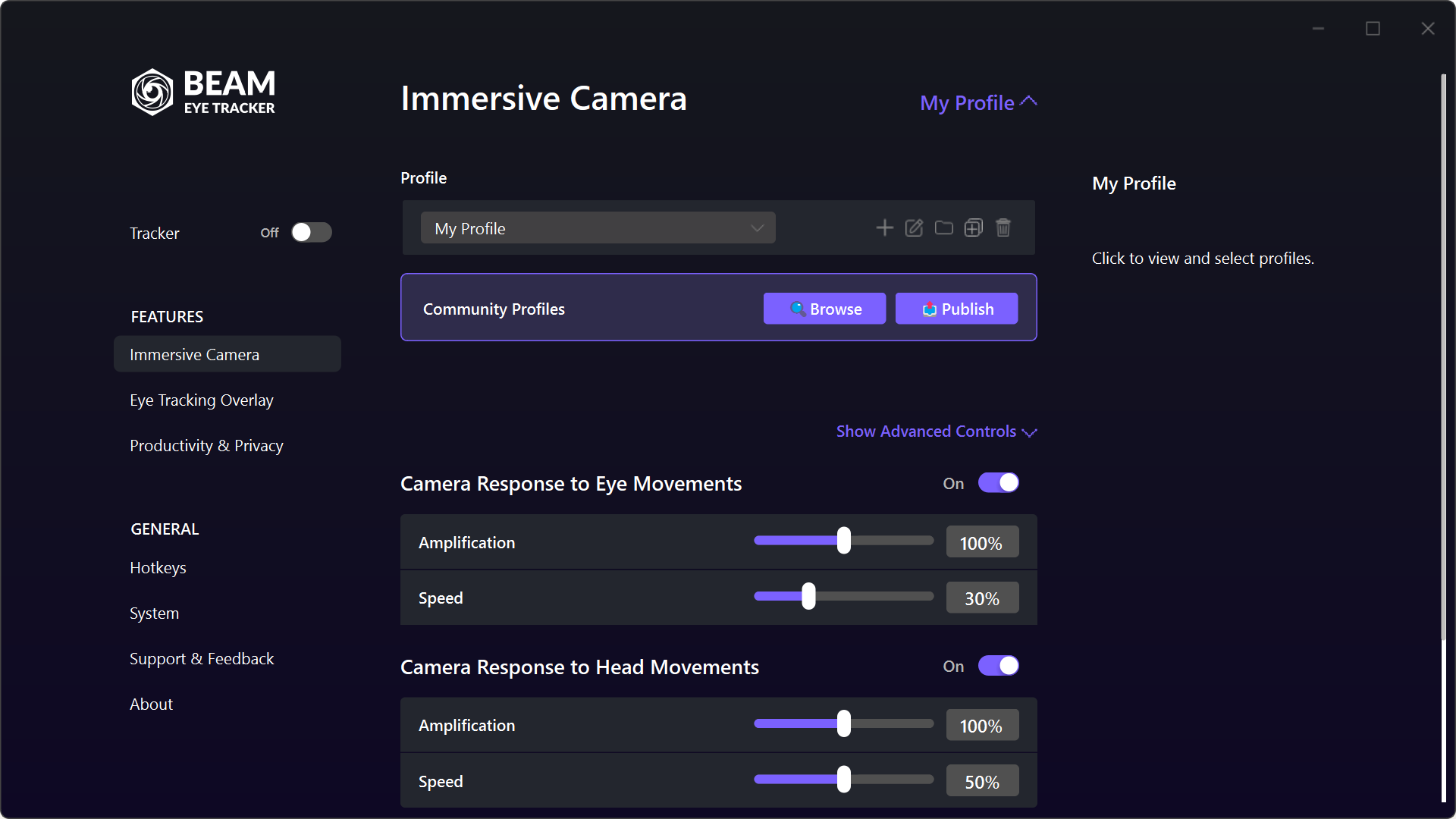
3 ProfilesSwitch between Default, Demo and Community Profiles, and create your own.
Default Profile
Balanced and cockpit-ready, with both eye tracking and head tracking on. It is read-only, so you cannot break it by accident, and you can always come back to it as your baseline.
Demo Profiles
Four presets, each isolating one input, so you can learn what head tracking and eye tracking each contribute before you combine them:
- Demo - Head Movements - Relaxed
- Demo - Head Movements - Fast
- Demo - Eye Movements - Smooth
- Demo - Eye Movements - Snappy
Community Profiles
Settings other players and creators have already dialed in for specific games, shared on the Steam Workshop.
4 Too fast, too slow, jittery or sensing motion sickness?Pick what it feels like and learn about common fixes.
Too fast
Go to Immersive Camera > Profile and select the Head Movements - Relaxed profile. This is a gentle baseline and only uses head tracking. If that is still too fast, lower Speed and raise Stability on Small Head Movements. Usually a good start for flight simmers in heavy aircraft, an Airbus for instance, or for truck sims: with Stability on Small Head Movements raised, the view stays steadier while you focus on the instruments.
Once you have that dialed in, slowly raise the sliders and bring eye tracking back in. Eye tracking makes the movement feel more natural and cuts down how much you have to move your head. More in the Profiles Guide.
Too slow
Go to Immersive Camera > Profile and select the Head Movements - Fast profile. If that is not fast enough, raise Speed and tweak Amplification from there.
Especially in space and combat flight sims, checking your six usually needs quite a high Speed and Amplification setting, or individual adjustments to pitch and yaw under Show Advanced Controls. More in the Profiles Guide.
Jittery
Lower Speed and raise Stability on Small Head Movements and Stability on Small Eye Movements.
If it still shakes, raise Head Tracking Smoothing and Eye Tracking Smoothing under Tracker in the settings. Both steady the signal against webcam noise and low light. Higher values are smoother but add latency.
Glasses, room lighting and camera position affect this as well. More in the jitteriness section on our support page.
Latency
Raise Speed, and lower Eye Tracking Smoothing and Head Tracking Smoothing under Tracker in the settings, since smoothing buys steadiness with delay.
Good light can help as well, as some webcams lower their frame rate in dark environments to increase exposure. If you choose to target a higher fps camera, check out our webcams page.
Motion sickness
If you feel nausea or dizziness after your first try, the default settings might be too sensitive for you. Go to Immersive Camera > Profile and select the Head Movements - Relaxed profile. This is a gentle baseline and only uses head tracking. If that is still too fast, lower Speed and raise Stability on Small Head Movements.
That is usually a good starting point: settle into it first, then adjust slowly, adding eye tracking and tuning from there. More in the Profiles Guide.
Troubleshoot
Antivirus (Kaspersky, etc.) flagged the Optimized driver?A false positive. The file is safe, it is Beam's own driver.
Kaspersky is the scanner we see this from most: it quarantines NPClient64.dll as a trojan. Other antivirus programs can react the same way. The file sits under Beam's interop\optimized folder and is the Optimized driver introduced in 2.6. Games load it to receive the tracking signal, and that is what heuristic detections react to. It is not harmful, and we report every detection to the antivirus vendor. The default Compatibility driver is not normally flagged.
To keep using Optimized, restore the file from quarantine and add both Beam folders to your antivirus exclusions: the BeamEyeTracker folder inside C:\Program Files\Eyeware, and the Beam Eye Tracker folder inside C:\Users\[your username]\AppData\Local. Then restart Bus Simulator 21. If you do not need Optimized, set Driver back to Compatibility under General > Game Connection.
Tell us which antivirus it is, on Discord or at support@eyeware.tech, so we can report it to the right vendor.
Need help?Common questions and troubleshooting.
Get answers to common questions and troubleshooting help on our support page.
Using the separate Opentrack app?(only required for v2.4.5 or older)
For Beam Eye Tracker 2.5.2 and newer, OpenTrack components are built-in for a simplified experience.
Users on v2.4.5 or older are required to use the separate OpenTrack app. Current users can also choose to use it if preferred. Follow the Opentrack extension setup guide and refer to the instructions and tooltips inside the Beam Eye Tracker for guidance.
Did we miss something in these instructions?Missing steps, unclear wording, anything out of date.
If a step is missing, unclear, or out of date, please help us keep it up to date and tell us on Discord, in our Steam discussion board or via support@eyeware.tech.
Troubleshoot
Compatibility environmentBeam finds it and configures it. Check it here if Bus Simulator 21 is not responding.
Beam lists the environment Bus Simulator 21 runs in under General > Game Connection. If it is still missing after starting Bus Simulator 21 once with Beam running, contact support.
Every environment starts on the Compatibility driver. Optimized gives smoother in-game camera movement and is set per environment.
Listed with a warning that the Steam Linux Runtime is unavailable? In your Steam library, install Steam Linux Runtime 3.0 (sniper) (under Tools), fully restart Steam, then click Refresh under General > Game Connection.
New to this? What a compatibility environment is, and why Beam needs one.
Need help?Common questions and troubleshooting.
Get answers to common questions and troubleshooting help on our support page.
The Linux channel on our Discord server is a good place to get an answer. You can also email support@eyeware.tech.
Using the separate Opentrack app?(only required for v2.4.5 or older)
For Beam Eye Tracker 2.5.2 and newer, OpenTrack components are built-in for a simplified experience.
Users on v2.4.5 or older are required to use the separate OpenTrack app. Current users can also choose to use it if preferred. Follow the Opentrack extension setup guide and refer to the instructions and tooltips inside the Beam Eye Tracker for guidance.
Did we miss something in these instructions?Missing steps, unclear wording, anything out of date.
If a step is missing, unclear, or out of date, please help us keep it up to date and tell us on Discord, in our Steam discussion board or via support@eyeware.tech.
Troubleshoot
Compatibility environmentBeam finds it and configures it. Check it here if Bus Simulator 21 is not responding.
Beam lists the environment Bus Simulator 21 runs in under General > Game Connection. If it is still missing after starting Bus Simulator 21 once with Beam running, contact support.
Every environment starts on the Compatibility driver. Optimized gives smoother in-game camera movement and is set per environment.
If Bus Simulator 21 hangs at startup in CrossOver and receives no tracking data, update to Beam 2.6.9 or newer, which fixes that startup hang.
New to this? What a compatibility environment is, and why Beam needs one.
Need help?Common questions and troubleshooting.
Get answers to common questions and troubleshooting help on our support page.
Using the separate Opentrack app?(only required for v2.4.5 or older)
For Beam Eye Tracker 2.5.2 and newer, OpenTrack components are built-in for a simplified experience.
Users on v2.4.5 or older are required to use the separate OpenTrack app. Current users can also choose to use it if preferred. Follow the Opentrack extension setup guide and refer to the instructions and tooltips inside the Beam Eye Tracker for guidance.
Did we miss something in these instructions?Missing steps, unclear wording, anything out of date.
If a step is missing, unclear, or out of date, please help us keep it up to date and tell us on Discord, in our Steam discussion board or via support@eyeware.tech.